Ever plugged in a USB drive, opened your BIOS, and nothing shows up? Your BIOS not detecting USB?
Yes, it is one of those situations that irritates you right away. Especially when you’re trying to install Windows or update your BIOS, and everything depends on that one USB drive being detected.
I’ve run into this myself more than once. You assume the USB is fine, it works perfectly inside Windows, but the moment you restart and enter BIOS, it’s like the drive doesn’t even exist.
The good news? This problem is usually fixable. And in many cases, the reason is much simpler than people think.
Why BIOS Not Detecting USB?
Before jumping into fixes, it helps to understand what’s actually going wrong. Because BIOS is far more limited than your operating system, even minor discrepancies might lead to problems with recognition.
Here are the most common reasons.
There are a few common reasons why BIOS not detecting USB. Most of them are simple once you know what to look for:
- USB Support Disabled: Most of the time, USB boot support is turned off in BIOS, so that our system won’t detect a USB device during startup. You just need to check the BIOS settings to fix it.
- Wrong Boot Mode: A mismatch between UEFI and Legacy mode can prevent the USB from appearing. Your USB needs to match the system’s current boot mode.
- Faulty USB Port: Most of the time, the USB port acts as the culprit, especially front or USB 3.0 ports not working properly in BIOS. The solution is simple, you just need to prefer a rear USB 2.0 port.
- USB Not Bootable: If the USB isn’t created correctly, the BIOS won’t recognize it as a boot device. Missing files or a wrong setup can cause this problem.
- Wrong File System: File system problem is one of the most common problems leading to failure of detection by the BIOS. Since most BIOS programs can detect only FAT32 drive, they may neglect USB drives which are in NTFS and exFAT formats. Formatting the drive is the solution to this problem.
How to Fix BIOS Not Detecting USB?
Now, let’s go step by step and actually fix the issue.
1. Enable USB Support in BIOS
Go into BIOS settings and make sure:
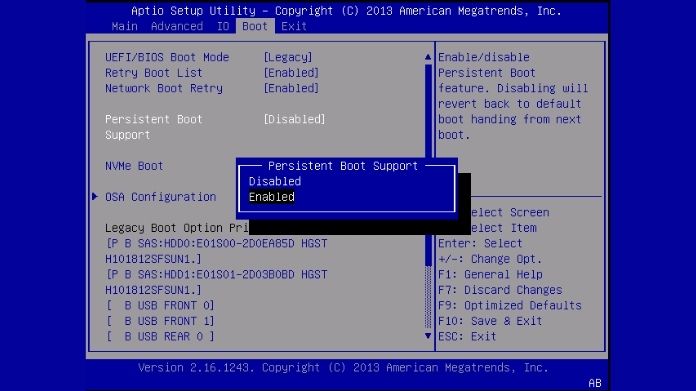
- USB Boot is enabled
- Legacy USB Support is turned on
2. Format USB to FAT32 (Most Important Fix)
This is the step that solves the issue in many cases.
Let’s be honest, most guides focus on BIOS settings or boot modes. But in real-world use, I’ve seen the file system issue cause more problems than anything else.
If your USB is currently in NTFS or exFAT, the BIOS might not recognize it at all. Then format the USB to FAT32, and suddenly, it works.
Now, for formatting a USB, if you think about the traditional inbuilt methods, you will be disappointed, as they have limitations for large USBs.
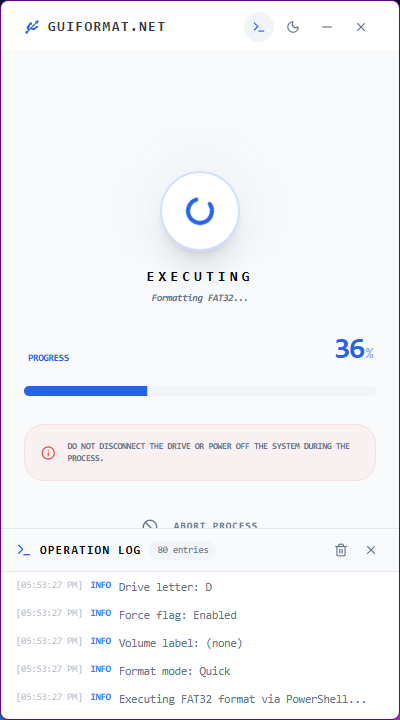
Here, we use the GUI Formatter tool, which allows users to format USBs in any file system safely and for free, with a simple interface.
So let’s follow the steps below,
- Plug in your USB drive
- Download GUI Formatter tool.
- Select your USB drive
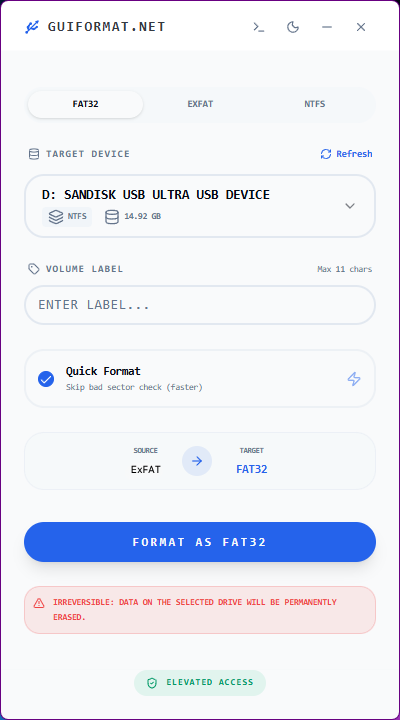
- Choose the FAT32 file system.
- Click Start and wait for completion.
3. Match Boot Mode (UEFI / Legacy)
To fix BIOS USB detection issues, your USB drive and BIOS boot mode must match.
Step 1: Check Boot Mode in BIOS
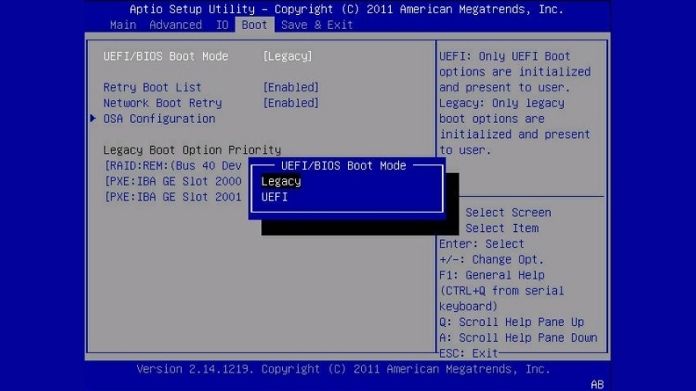
- Restart your PC and enter BIOS (F2 / DEL / F10).
- Look for Boot Mode – it will show UEFI or Legacy.
Step 2: Format USB to FAT32 (Important)
Windows built-in format tool can do this, but it may fail for larger drives. Use GUI Formatter to format your USB to FAT32 easily and remove Windows size limits.
Step 3: Match with BIOS
- UEFI mode → FAT32 USB works best
- Legacy mode → FAT32 still recommended for detection.
Set the same boot mode in BIOS.
4. Use the Right USB Port
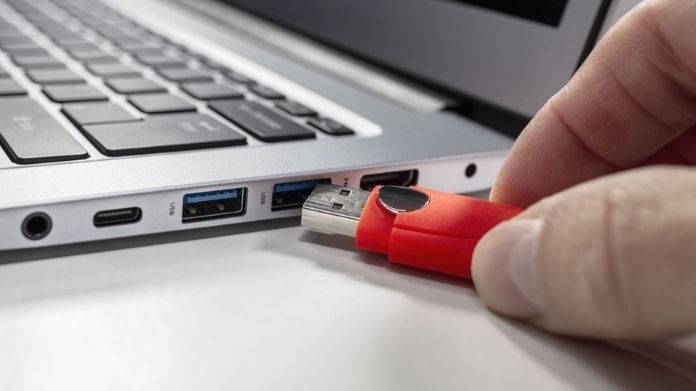
Plug your drive into a USB 2.0 port, preferably at the back of your PC.
Why FAT32 Matters for BIOS?
BIOS firmware is designed to be lightweight and universal. Because of that, it supports basic file systems like FAT32, not more advanced ones like NTFS.
FAT32 works because:
- It’s widely supported across systems.
- It’s simple and reliable.
- It’s required by many BIOS update tools.
So if your USB isn’t in FAT32, there’s a good chance BIOS will skip it entirely.
When This Won’t Fix the Problem?
To be fair, this isn’t a magic fix for everything.
GUIFormatter won’t help if:
- The USB isn’t detected at all (hardware issue)
- The port is damaged
- BIOS settings are misconfigured
- The USB isn’t bootable
But if your USB works in Windows and just isn’t showing in BIOS, the file system is often the culprit.
Final Thoughts
BIOS not detecting USB” sounds like a complicated problem, but most of the time, it comes down to a few simple issues.
And surprisingly, one of the biggest ones is also the easiest to fix the file system.
If your USB is formatted correctly, especially to FAT32, there’s a high chance your BIOS will recognize it without any trouble.
And if Windows won’t let you do that, tools like GUI Formatter make the process quick and straightforward.
Sometimes, the simplest fix really is the right one.