When you want a USB drive to work with many devices, you usually have to format it to FAT32.
Many game consoles, smart TVs, cameras, and media players use FAT32 because it is one of the most commonly supported file systems.
However, users often run into a common problem when trying to format a USB drive of large size.
In Windows, the built-in formatting tool usually limits FAT32 formatting to 32GB, even though the file system itself can support much larger storage sizes.
This restriction can make the process confusing when working with USB drives like 64GB or 128GB.
The good news is that there are simple ways to format a USB drive larger than 32GB to FAT32.
In this post, we’ll explain how FAT32 works and lead you through simple ways to format a USB drive greater than 32GB.
Understanding the FAT32 File System

FAT32 (File Allocation Table) FAT32 is an extension of the previous file systems, where the data is stored in chunks of 32 bits.
A file system called FAT32 controls data storage on USB sticks, memory cards, hard drives, and other storage media.
One of the main reasons FAT32 remains popular is its high compatibility. According to the recommendations, FAT32 can function on the majority of operating systems without the need for additional software.
Basic Characteristics of FAT32
Some important features of FAT32 include:
- High compatibility – Supported by Windows, macOS, Linux, gaming consoles, and many electronic devices.
- Maximum file size limitation – Individual files cannot exceed 4GB.
- Efficient for portable storage – Commonly used for USB drives, SD cards, and external storage.
Because of these advantages, FAT32 continues to be used for many everyday storage tasks.
Why You Might Need FAT32 for Large Drives?
Even though newer file systems like NTFS and exFAT exist, FAT32 is still required in many situations.
- Device Compatibility: Many devices only support FAT32 drives, including –
- Gaming consoles
- Smart TVs
- Digital cameras
- Car media systems
However, in case the USB drive has been formatted using a different file system, these devices will not recognize it.
- Cross-Platform Support: FAT32 has cross-platform support, which means it can support various operating systems, including Windows, Mac, and Linux.
- Bootable Media Requirements: There are some firmware tools and systems that require the USB drive to be formatted in FAT32 in order to create bootable media.
- External Hardware Support: Devices such as routers, printers, and media players often recognize FAT32 more reliably than newer file systems.
Why does Windows Limit FAT32 Formatting to 32GB?
Windows limits FAT32 formatting to 32GB mainly because of a long-standing design choice in its built-in formatting tools.
- An Artificial Windows Restriction – The FAT32 file system can handle larger volumes, up to 2TB. However, the Windows formatting tools have historically only allowed for the creation of FAT32 partitions of 32GB.
- Concerns About Efficiency – Larger FAT32 partitions can exhibit inefficiencies due to cluster slack. This was one of the considerations for the artificial restriction on the size of the partitions that the Windows formatting tool can create.
- Windows Can Still Read Larger FAT32 Drives – Although the Windows formatting tools have historically not allowed for the creation of FAT32 partitions larger than 32GB, they can still read FAT32 partitions of up to 2TB if they were originally created with other tools.
Because of this limitation, many users rely on third-party formatting utilities when they need to format a USB drive larger than 32GB to FAT32.
Using a Simple GUI Tool for FAT32 Formatting
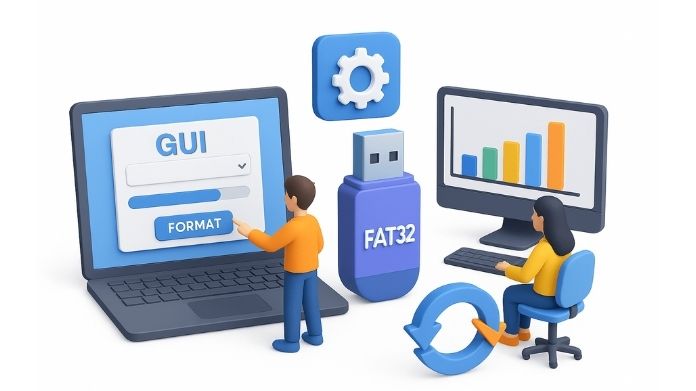
One of the most straightforward methods of format a USB drives of large size using the FAT32 file system involves the use of the graphical formatting tools.
The use of the graphical tools is more appropriate since it can simplify the formatting process for the users.
In this case, the users can format a USB drive of a larger size using the FAT32 file system with ease.
These tools provide a simple interface where you can:
- Select the target drive
- Choose the file system
- Start the formatting process
This approach is especially helpful for beginners who want a straightforward way to format large drives.
Step-by-Step Guide to Format a USB Drive Larger Than 32GB
Formatting a USB drive larger than 32GB is simple if you follow the correct steps.
- Connect the USB Drive: Insert the USB drive into your pc and wait till it is detected. Now you can see your USB drive in your File Explorer.
- Back Up Important Files: Before formatting, we must make sure to copy important files to another location, or we can say we have to create a backup for these files.
- Open the Formatting Tool: Open the formatting tool/software like the GUI Formatter, which supports FAT32 for large files.

- Select the Correct Drive: Now, simply select the USB drive that you want to format. Double-check the drive letter and size to avoid mistakes while formatting.
- Choose FAT32 File System: Select FAT32 as the file system option.
- Start the Formatting Process: Click the Format or Start button. The process usually takes a few seconds or minutes, depending on the drive size.
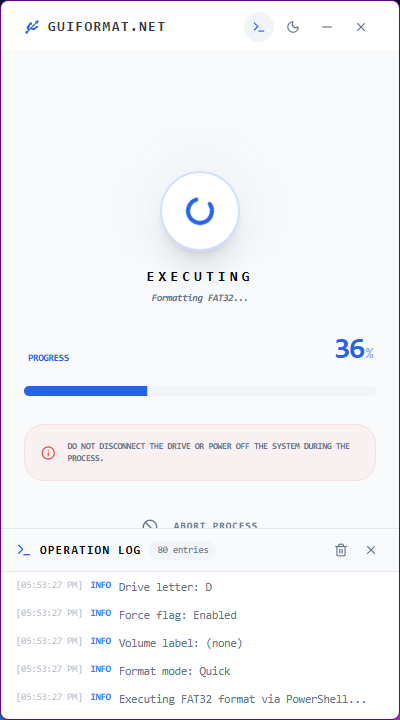
- Verify the Formatted Drive: After completion of the formatting process, the drive must be opened again using the file manager. This will confirm that the drive is now ready for use.
Important Things to Remember Before Formatting
Before formatting any storage device, keep the following precautions in mind:
- It is necessary to backup all important data since formatting erases all data.
- Make sure you select the correct drive otherwise you will lose data from the wrong place.
- Do not disturb the process of formatting because it might give errors.
Following these simple precautions can help ensure the process runs smoothly.
Wrap Up
However, it should be noted that Windows limits FAT32 to only 32GB of storage. Actually, greater storage sizes may be handled by FAT32.
Large-capacity USB drives can still be formatted using FAT32 if a suitable program is used.
However, it is important to ensure that you back up all important files before you start the process. It is also important to ensure that the drive is correctly identified before you start the process of formatting.