If you have attempted to format 64GB USB to FAT32 using Windows, you have encountered a problem: the FAT32 option is nowhere to be found.
Instead, you are given the options of NTFS and exFAT for your 64GB drive. The problem is that the FAT32 file system does not have a 64GB limit, but Windows does have a 32GB limit for it.
The limit is not a problem with the FAT32 file system; rather, it is a problem with the Windows formatting utility.
Thankfully, there are several methods for bypassing the issue. For example, you may convert your 64GB USB drive to FAT32 in a couple of minutes using a tool like GUI Formatter.
Why Windows Doesn’t Allow FAT32 Formatting Above 32GB?
A Windows restriction is a common reason consumers find it difficult to convert large USB drives to FAT32.
The FAT32 option just doesn’t show up when you use the built-in tool to format a disk larger than 32GB. This does not exclude FAT32 from supporting larger drives, either.
Many people falsely assume that FAT32 cannot be used with larger drives because Microsoft implemented this restriction to encourage users to move to newer file systems like NTFS and exFAT.
Actual Maximum Size of FAT32
FAT32 can technically support partitions up to 2TB, so it can handle large storage devices without problems.
However, it has one major limitation: the maximum file size is 4GB. That means FAT32 can not handle really big files.
Despite this restriction, FAT32 is still frequently used since it is compatible with a broad range of devices, including TVs, game consoles, automotive media systems, and older hardware.
Things to Know Before Format 64GB USB to FAT32
Before you format 64GB USB to FAT32, there are a few important things to keep in mind.
- Formatting Will Erase All Data: Before you go ahead with formatting your drive, keep in mind that this process will wipe everything on it every file and folder will be erased. It’s really important to back up any important data you want to keep before you start.
- FAT32 File Size Limit (4GB): Although the FAT32 file system works for a variety of devices, there is a limitation to using this file system. The limitation is that a file should not be larger than 4GB. For example, large video files or disk images that exceed this size cannot be stored on a FAT32 drive.
- Compatibility Advantages of FAT32: Even with its limitations, FAT32 is still widely used because it works with many devices. Gaming consoles, smart TVs, cameras, and other systems often support FAT32 but not NTFS. For this reason, if you want the best device compatibility, formatting a USB drive to FAT32 is still essential.
Format 64GB USB to FAT32 Using GUI Formatter
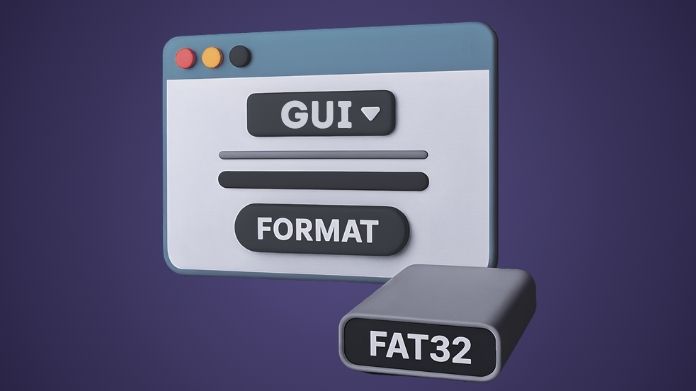
The easiest way to bypass the Windows 32GB limitation is by using a small tool called GUI Formatter.
It’s a simple tool designed to format 64GB USB to FAT32 when Windows doesn’t allow it.
The tool is simple, fast, and focuses on one job, formatting drives to FAT32 without complicated steps or commands.
Why GUI Formatter Is the Best Tool for Formatting Large USB Drives?
Here are the main reasons why GUI Formatter is considered one of the best tools for this task:
- Bypasses the Windows 32GB FAT32 Limit: There is a restriction on the ability to format 64GB USB to FAT32 sticks larger than 32GB to FAT32, which is frequently not supported by Windows.
- Very Simple and Beginner-Friendly Interface: The tool has a simple interface that is easy for beginners to understand.
- Fast Formatting: It can format USB drives in just a few seconds.
- No Installation Needed: GUI Formatter is a portable tool, so you can download it and execute it without having to install anything.
- Works with Large USB Drives: It can easily format larger USB drives, including 64GB, 128GB, and even bigger ones.
- Trusted by Many Users: Because it works reliably, the tool has been around for years and is well trusted by technicians and everyday users.
Steps to Format a 64GB USB Drive to FAT32 Using GUI Formatter

Follow these steps to format your USB drive safely.
- Step 1: Download the GUI Formatter: Download the GUI Formatter utility from a trusted source and save it to your computer.
- Step 2: Insert Your 64GB USB Drive: Plug the USB drive into your computer and make sure Windows detects it.
- Step 3: Run the GUI Formatter Application: Open the downloaded guiformat.exe file. A small formatting window will appear when the tool launches.
- Step 4: Select the Correct USB Drive: In the Drive dropdown, choose your USB device letter.
- Step 5: Set the Allocation Unit Size: You can leave this setting at its default value unless you have a specific reason to change it.
- Step 6: Start the Formatting Process: Click the Start button to begin formatting the drive to FAT32.
After a few moments, the formatting process will complete, and your USB drive will be ready to use with the FAT32 file system.
How to Check if Your USB Is Formatted to FAT32?
After formatting, it is a good idea to confirm that the file system has been applied correctly.
Method 1: Check via File Explorer
- Open File Explorer.
- Locate your USB drive in the list of drives.
- Right-click the drive and select Properties.
- Look at the File System field. It should display FAT32.
Method 2: Check via Disk Management
- Press Windows + X on your keyboard.
- Select Disk Management from the menu.
- Find your USB drive in the list of storage devices.
- The file system type will appear next to the drive information.
Common Problems When Formatting a USB to FAT32
Users run across problems when formatting USB devices. These are some typical issues along with their root causes.
- FAT32 Option Not Showing in Windows: This is the most common issue, and it occurs because Windows allows only drives of 32GB or less to be formatted to FAT32. Using GUI Formatter solves this problem.
- USB Not Detected: Try reconnecting the USB drive to a different USB port if it does not show up in File Explorer. You can also check Disk Management to see if Windows detects the device there.
- Formatting Process Fails: If the USB disk contains faulty sectors or is being used by another software, formatting may not work. Reconnecting the device and shutting off any apps that aren’t needed usually fixes the problem.
Wrapping Words
Windows makes it difficult to format a 64GB USB drive to FAT32 since the FAT32 option is hidden for bigger devices.
However, this is not a FAT32 limitation; rather, it is only a Windows one. A simple tool like GUI Formatter may easily format larger drives.
FAT32 is still widely used because it works with a wide variety of devices, including gaming consoles, media players, and older hardware. It is actually very easy to format a big USB disk to FAT32 using the correct.