If you’ve ever tried plugging a USB drive into a smart TV, gaming console, or car system, you might have noticed that only certain things work when the drive is formatted correctly. In many cases, that format is FAT32.
There are newer file systems, but FAT32 is still widely used for one simple reason: compatibility. It works almost everywhere. TVs read it. Consoles accept it. Even older devices rely on it.
But here’s where things get frustrating. When you try to format a USB drive on Windows, especially if it’s larger than 32GB, the FAT32 option often disappears completely.
That’s usually the moment users start searching for a solution and end up needing a free FAT32 formatter.
What is a Free FAT32 Formatter?
A free FAT32 formatter is a tool that helps you format storage devices, such as USB drives or SD cards, to the FAT32 file system. Usually, Windows refuses to do it for larger drives.
Instead of dealing with command-line tools or difficult settings, consumers choose a tool that provides a simple approach to do tasks without restrictions.
This is where GUIFormatter comes in. It is a free FAT32 formatter tool designed to remove Windows limitations and make formatting simple again.
It allows you to format larger USB drives and SD cards to FAT32 and other file systems (ExFAT & NTFS) with a few simple steps.
Instead of forcing users into technical workarounds, GUIFormatter keeps everything straightforward and beginner-friendly.
Key Features of GUIFormatter
GUIFormatter focuses on doing one job well, making formatting simpler. Here’s what makes it useful:
- Formats USB drives larger than 32GB to FAT32
- Also, format the USB in another file system, such as ExFAT or NTFS
- Simple, clean interface
- No command-line usage required
- Fast formatting process
- Works well for USB drives and SD cards
- Designed for beginners as well as advanced users
The idea is simple: open the tool, select the drive, and format it without confusion.
Step-by-Step Guide: How to Use GUIFormatter?
Don’t worry if this is your first time using a formatting tool; GUIFormatter is designed to be easy to use.
Technical expertise or command-line proficiency are not required. Just follow these steps carefully.
Step 1: Download and Open GUIFormatter
Firstly, we have to download GUIFormatter from a reliable source and launch the program. There are no installation issues, and it operates quickly.
Step 2: Insert and Select Your USB or SD Card
- Plug in your USB drive or SD card to your computer.
- Now, open GUIFormatter and select your drive from the list.
Choose the right drive, especially if you have several linked storage devices.
Step 3: Set the File System to FAT32
After choosing the drive, look for the file system option and select FAT32.
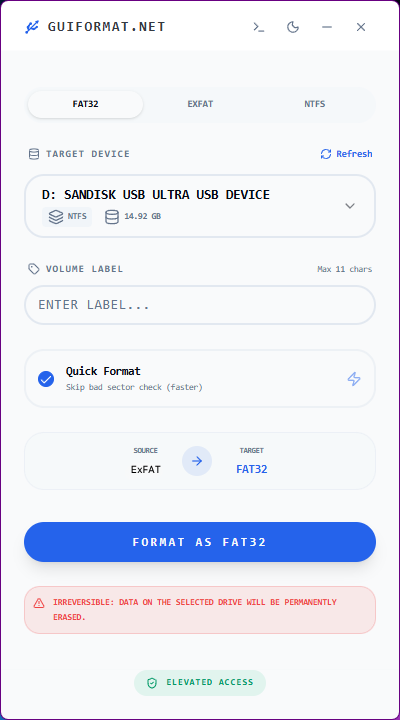
This is the most important step because it tells the tool exactly how you want your drive formatted.
Step 4: Select the formatting Type
Now choose your format option based on what you need:
- Quick Format (Recommended): It instantly formats your disk by emptying the file system and making it ready for usage. It’s great for most people because it saves time and performs well for routine tasks.
- Full Format: It takes more time but goes deeper. It scans the entire drive for potential errors while formatting it. Choose this if you want a more thorough process or suspect issues with your storage device.
Step 5: Start the Formatting Process
Click the Format button once everything appears to be in order.
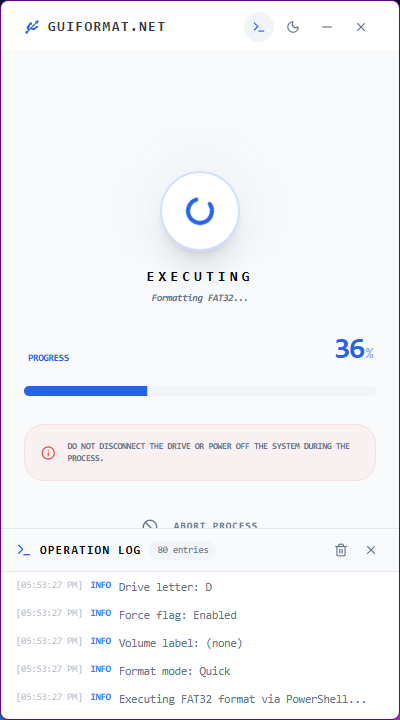
A warning will appear saying all data will be erased. Confirm it only if you’ve already backed up your important files.
Step 6: Wait for Completion
Now just wait for the process to finish. It usually takes only a few moments, depending on your drive size.
Your USB or SD card will then be successfully formatted to FAT32 and functional.

When Should You Use FAT32 Format?
FAT32 is mostly used in most of the places where compatibility is important.
You’ll need it for:
- Gaming consoles like PlayStation and Xbox
- Smart TVs for media playback
- Car audio systems
- Digital cameras and older devices
- File transfer across multiple platforms
FAT32 is often the safest option if your USB has to function everywhere.
Why Choose GUIFormatter Over Other Tools?
Although there are other formatting tools available, GUIFormatter is unique because:
- It removes Windows restrictions
- It’s lightweight and easy to use
- No technical knowledge is required
- It focuses only on FAT32 formatting
- It saves time compared to manual methods
Users receive a straightforward repair rather than battling with complex solutions.
Safety Tips Before Formatting
Before you format any drive, keep these points in mind:
- Always back up important data
- Double-check the selected drive
- Avoid interrupting the process once started
- Make sure FAT32 is actually the format you need
Our Thoughts
FAT32 is still one of the most important file systems when it comes to device compatibility. But Windows limitations often make it harder than it should be to use.
That’s where tools like GUIFormatter come in. They remove the unnecessary barriers and make formatting simple again.
If you’ve ever struggled with missing FAT32 options or failed formatting attempts, a free FAT32 formatter like GUIFormatter can save you a lot of time and frustration.
Simple tool. Real solution.