Have you ever plugged in an SD card or USB drive, opened GUI Formatter, clicked Start, and been greeted with the frustrating message:
“Failed to open volume.”
If so, you’re not alone.
The first time I ran into this error, I assumed the SD card was damaged. After trying different USB ports and even another computer, I discovered the problem wasn’t the card at all; Windows was quietly holding onto it in the background.
The good news? This error is usually easy to fix once you know what’s causing it.
In this guide, I’ll explain briefly why Windows 11 and Windows 10 display the error notice “GUI Formatter failed to open volume” and provide you many practical solutions.
Why Does GUI Formatter Say “Failed to Open Volume”?
GUI Formatter needs exclusive access to your drive before it can format it.
If another application is reading, scanning, or monitoring the drive, even in the background, Windows prevents GUI Formatter from taking control, which triggers the “failed to open volume” error.
In most cases, the drive itself is perfectly healthy. It’s being used by another process.
Solution 1: Close File Explorer First
This sounds surprisingly simple, but it’s often the fix.
Many people leave the USB drive or SD card open in File Explorer while trying to format it. Since File Explorer is actively accessing the drive, Windows won’t let GUI Formatter take exclusive control.
What to do
- Close every File Explorer window.
- Remove any Quick Access windows showing the drive.
- Wait a few seconds.
- Run GUI Formatter again.
You’d be surprised how often this solves the problem immediately.
Solution 2: Close Programs That May Be Using the Drive
Some applications continuously monitor removable storage without you realizing it.
Common examples include:
- Steam
- Epic Games Launcher
- OneDrive
- Dropbox
- Google Drive
- Antivirus software
- Media players
- Backup utilities
The above-mentioned software can detect new disks by themselves, forming the volume lock.
How to check
- Press Ctrl + Shift + Esc to open Task Manager.
- Look for applications that might be accessing your SD card or USB drive.
- Right-click the program.
- Select End Task.
- Launch GUI Formatter again.
Solution 3: Remove the Volume Lock with DiskPart
If the error still appears, Windows may have left the drive in a locked state.
Using DiskPart can clear the existing partition information and release the lock.
Step 1: Open Command Prompt as Administrator
Search for Command Prompt, right-click it, and choose Run as administrator.
Step 2: Run These Commands
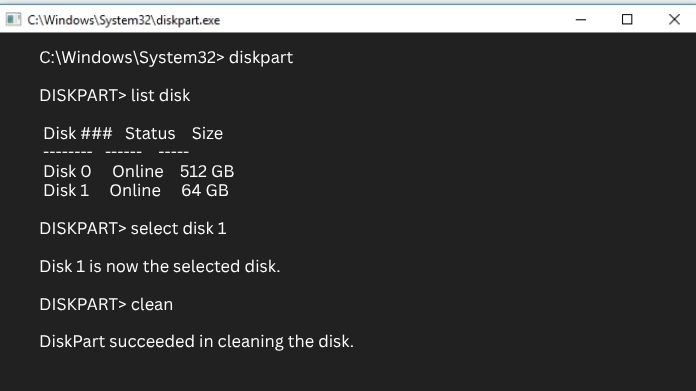
diskpart
list disk
select disk X
clean
Important: Replace “X” with the name or letter of your SD/USB disk. It should be noted that this action is irreversible.
Step 3: Create a New Volume
After running clean, your drive will appear as Unallocated.
Now:
- Open Disk Management.
- Find your SD card or USB drive.
- Right-click the Unallocated space.
- Select New Simple Volume.
- Follow the wizard.
- Assign a drive letter.
Once the new volume is created, close Disk Management.
Now run GUI Formatter again. In most cases, the error disappears because Windows has rebuilt the partition correctly.
Additional Tips
If you’re still seeing the error, try these quick checks:
- Disconnect and reconnect the drive.
- Try a different USB port.
- Use another SD card reader.
- Restart Windows to release any hidden file locks.
- Temporarily disable third-party antivirus software if it’s scanning removable drives.
How to Prevent This Error in the Future
To reduce the chances of seeing the error again:
- Close File Explorer before formatting.
- Stop cloud sync applications temporarily.
- Safely eject drives before reconnecting them.
- When formatting, do not open any files on the disk.
- Make sure no backup software is running in the background.
These simple habits can save you a lot of frustration.
Final Thoughts
The failed to open volume error usually isn’t a sign that your SD card or USB drive is faulty. More often than not, Windows or another application is simply keeping the drive busy.
Start by closing File Explorer and any background apps that might be accessing the drive. If that didn’t help, running DiskPart to clear the disk and create the partition again will solve the problem very quickly.
Once Windows releases the drive, GUI Formatter should be able to format it without any further issues. These instructions should guide you on how to format your storage device successfully.