Have you connected your SanDisk USB drive, opened GUI Formatter, and discovered that your SanDisk USB not detecting? When attempting to convert a big USB drive to FAT32, it might be very annoying.
The good news is that GUI Formatter is rarely the actual problem.
Usually, the problem is connected with the way Windows sees the USB drive, the file system of the drive, and its current partition structure.
This problem was faced by me while formatting a 128 GB SanDisk USB drive. Windows detected the USB drive, but it was not showing up in the GUI formatter.
After checking Disk Management, I realized the drive had no assigned letter after a previous formatting attempt. Assigning a new drive letter solved the problem instantly.
This guide will lead you through the most prevalent reasons and the best treatments if you’re having the same problem.
Why SanDisk USB Not Detecting in GUI Formatter?
GUI Formatter doesn’t scan every storage device connected to your computer. Instead, it relies on Windows to identify and report removable drives.
GUI Formatter won’t show your SanDisk USB if Windows can’t detect it correctly or if the disk has a corrupted partition, a missing drive letter, or a hardware problem.
Let’s go through the most common reasons.
1. Windows Isn’t Detecting the SanDisk USB
While experiencing SanDisk USB not detecting in the GUI formatter, before going for the troubleshooting GUI formatter, ensure that your USB drive is detected by Windows.
Open File Explorer and check whether your USB appears.
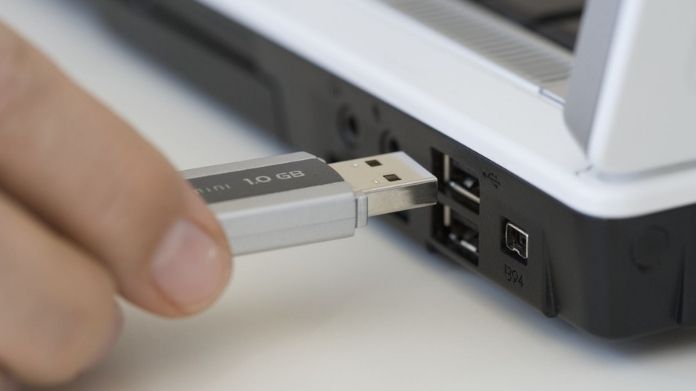
If it doesn’t:
- Try another USB port.
- Connect the drive directly instead of using a USB hub.
- Restart your computer.
- Test the USB on another PC.
If Windows doesn’t detect the drive, GUI Formatter won’t either.
2. The USB Doesn’t Have a Drive Letter
This is one of the most overlooked causes behind the SanDisk USB not detecting issue.
Sometimes Windows recognizes the USB drive but doesn’t assign it a drive letter, making it invisible to many applications.
How to Fix It
- Press Windows + X.
- Open Disk Management.
- Locate your SanDisk USB.
- Right-click the partition.
- Select Change Drive Letter and Paths.
- Assign an unused drive letter.
Launch GUI Formatter again to see if the drive appears.
3. The USB Partition Is Corrupted
The drive can get damaged because of unexpected power loss during formatting or incorrect removal of the drive, which can cause a corrupted partition. This results in a SanDisk USB not detected issue.
Signs include:
- RAW file system
- Unallocated space
- Windows asking you to format the drive immediately
Solution
If your files are important, recover them before making any changes.
Otherwise:
- Delete the damaged partition.
- Create a new partition in Disk Management.
- Try opening GUI Formatter again.
4. GUI Formatter Needs Administrator Permissions
Windows security can sometimes prevent formatting tools from accessing storage devices.
A simple permission issue may stop GUI Formatter from displaying your USB.
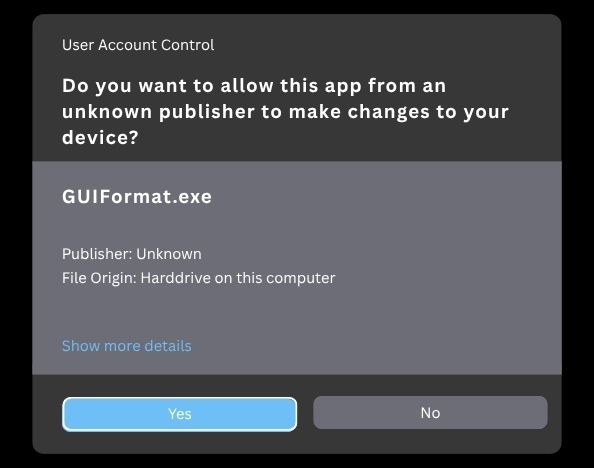
Fix
- Close GUI Formatter.
- Right-click the application.
- Select Run as administrator.
This small step solves the problem more often than many users expect.
5. Outdated or Corrupted USB Drivers
Your PC and flash drive may not be able to communicate if Windows is running out-of-date or broken USB drivers.
Update Your Drivers
- Open Device Manager.
- Expand Disk Drives.
- Right-click your SanDisk USB.
- Select Update Driver.
If update fails to fix the problem, un-install the device and reconnect it.
6. The USB Is Write-Protected
Also, some USB drives get their write-protection activated because of software problems.
When this happens, formatting tools may refuse to work correctly.
Check for Write Protection
- Look for a physical lock switch (if your device has one).
- Use DiskPart to remove write protection.
- Check Windows Registry settings if necessary.
7. The USB Drive May Have Hardware Problems
Unfortunately, not every detection issue has a software fix.
If your SanDisk USB has:
- Physical damage
- Failing flash memory
- Controller failure
GUI Formatter won’t be able to detect or format it.
Try:
- Another USB port
- Another computer
- Another operating system
If the drive still isn’t recognized anywhere, replacement may be the only option.
How to Check Whether Windows Detects the Drive?
Before blaming GUI Formatter, perform these quick checks:
- Open File Explorer
- Open Disk Management
- Check Device Manager
- Run:
diskpart
list disk
If the drive appears in these tools, the problem is usually easy to resolve.
Tips to Prevent Detection Problems
A few good habits can save you from future headaches.
- Always eject your USB safely.
- Avoid disconnecting it during file transfers.
- Keep Windows and USB drivers updated.
- Use high-quality USB ports instead of unreliable hubs.
- Regularly back up important files.
These simple practices help maintain both performance and reliability.
Final Thoughts
The issue of SanDisk USB not detecting in GUI Formatter could be quite annoying, but it could easily be fixed using the proper procedure.
In order to be able to use GUI Formatter effectively, it is essential to make sure that the drive is ready for the process. Take care of your drives and devices to have the best results.