You plug your USB into your PS4, expecting it to just work… but nothing shows up.
No error, no warning, just silence.
If that sounds familiar, you’re definitely not alone. One of the most common reasons a PS4 fails to recognize a USB drive is something most people don’t even think about: the format USB for PS4. The good news? It’s usually an easy fix.
We’ll take you step-by-step through the process of correctly format USB for PS4 to FAT32.
This will help you get it running without the typical irritation, whether you’re attempting to install an update, backup data, or resolve a difficult USB issue.
What Format Does PS4 Support?
Before jumping into formatting, it helps to understand what your PS4 actually accepts.
The PS4 supports:
- FAT32
- exFAT
What it doesn’t support is NTFS, which is the default on many USB drives. So if your USB isn’t showing up, it’s likely using the wrong format.
How to Format USB for PS4 to FAT32?
Method 1: Format USB on PS4
You may even format your USB straight on the PS4 if you’d like. Although it functions somewhat differently from regular formatting, it’s a practical choice, particularly if you don’t have instant access to a computer.
Here’s how to do it:
- Plug your USB drive into the PS4
- Go to Settings → Devices → USB Storage Devices
- Select your USB drive
- Choose Format as Extended Storage
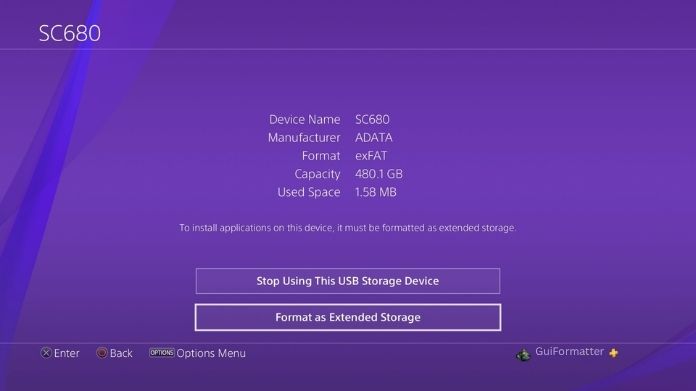
- The PS4 will then format the drive for its own use.
Keep in mind that this format is mainly for storing games, not for updates or general file transfers.
Method 2: Format USB on Windows
File Explorer and Disk Management are two conventional methods for formatting a USB device in Windows.
While those methods work fine for smaller drives, they often fall short when dealing with larger USBs, especially when the FAT32 option simply doesn’t appear.
Because of this, utilizing GUI Formatter is frequently the best and most dependable option.
It gets rid of these restrictions and makes it easy and quick to convert big USB devices to FAT32.
Here’s how to use it:
- Download GUI Formatter from a trusted source
- Plug in your USB drive
- Select the correct drive letter
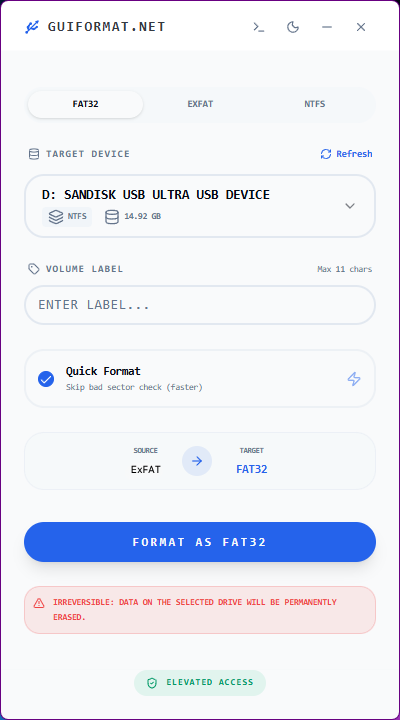
- Leave settings as default
- Click Start
That’s it, quick and reliable.
If you’ve been stuck trying different methods, this is usually the one that works.
Why Format USB for PS4 to FAT32?
Formatting your USB to FAT32 is more than just a technical procedure; it is what allows your drive to function with your PS4.
Even if the USB is absolutely OK, your console may not detect it until it is formatted correctly.
FAT32 is extremely useful for things like installing system updates and troubleshooting frequent difficulties where the USB just does not appear.
In many cases, people assume their USB drive is faulty, but the real problem is just an incompatible file system.
Switching to FAT32 often resolves the issue quickly and gets everything working as expected.
Wrapping Words
Format USB for PS4 might seem like a small step, but it’s often the difference between something working instantly and not working at all.
FAT32 remains one of the most reliable formats for compatibility, especially when dealing with updates or system fixes.
And if Windows makes things difficult, tools like GUI Formatter make the process quick and stress-free.
Once you get this right, you won’t have to deal with the same issue again, and that’s a win.
Frequently Asked Questions
Q. Why Won’t My PS4 recognize My USB?
Ans. If your USB is not recognized, then the known issue is your file system, so you must make sure that your drive is formatted to exFAT or FAT32 and plugged directly into the console. Common solutions include formatting the USB to the required file system, cleaning the ports, restarting the console, etc.
Q. What Type of USB for PS4?
Ans. The PlayStation 4 controller (DualShock 4) charges and syncs with the system via a regular Micro-USB port. The console has USB 3.0 Type-A connectors for external drives and charging, while the controller port is USB 2.0 Micro-B. Syncing controllers requires a data transmission connection.
Q. Can I Change exFAT to FAT32?
Ans. Yes, we can easily convert the exFAT to FAT32, but this method does not complete without losing data. So before converting, we have to back up our data to prevent data loss. I’ve personally run into the Windows limit where FAT32 just isn’t an option, but GUI Formatter removes that limitation instantly, making the process simple and reliable.