However, most of us depend on the USB device on a daily basis to copy data, install applications, or even start an operating system without realizing what goes on in the background.
However, our computer employs an internal structure to keep things ordered, regardless of the task such as saving, opening, or deleting a file.
The File Allocation Table is one such structure that is essential to the storage and retrieval of data in FAT32.
If you’ve ever dealt with issues like a USB not booting or files behaving unexpectedly, there’s a good chance it’s connected to how this system works. The good news? You don’t need to be highly technical to understand it.
In this article, we’ll break down the FAT32 File Allocation Table in a simple, helpful manner to help you understand what’s going on with your drive and avoid common problems.
What is FAT32?
FAT32 divides your files into small parts, called clusters, instead of one large part. Think of a story you want to tell, and you end up telling it over several pages.
Why? Because it works almost everywhere.
Whether you’re using Windows, macOS, Linux, or even a gaming console or TV, FAT32 is one of the safest choices for compatibility.
Of course, it’s not perfect. It has limitations like not allowing files larger than 4GB, but for simple storage and bootable drives, it does the job really well.
What is a File Allocation Table (FAT)?
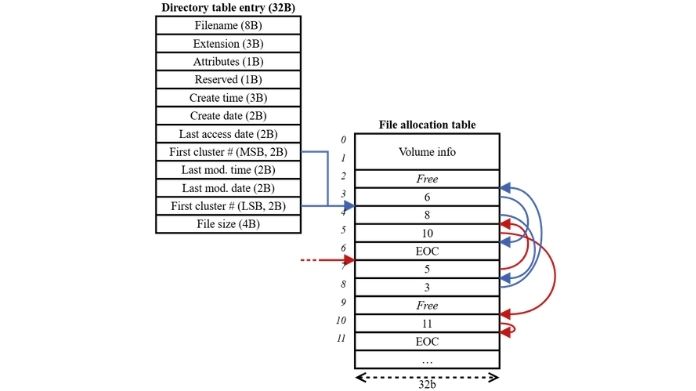
Consider the File Allocation Table a map of your data. When you save a file, your system does not just save it in one location. Instead, it may divide the file into tiny bits and store them in other areas of the disk.
The FAT keeps track of all those pieces. It tells the system:
- Where each part of the file is stored
- How those parts are connected
- Which areas of the drive are free or already used
Without this “map,” your computer wouldn’t know how to find or rebuild your files.
How the FAT32 File Allocation Table Works?
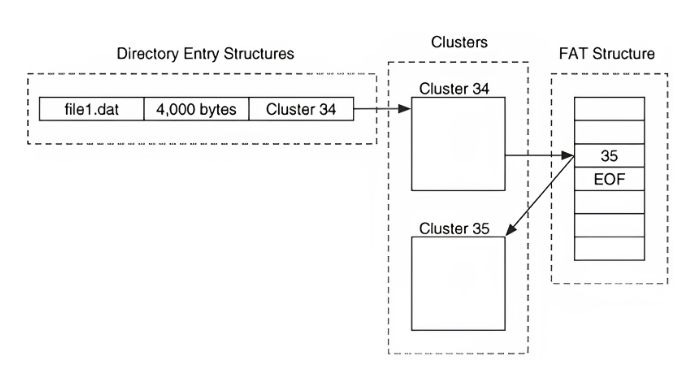
Now let’s walk through what actually happens behind the scenes.
How Files Are Stored?
When you save a file:
- It gets divided into clusters
- These clusters are placed in available spaces on the drive
- The FAT records where each piece goes
The Cluster Chain System
Each cluster contains a reference to the next one.
So instead of storing a file in one place, FAT32 creates a chain of clusters.
Think of it like a treasure hunt:
- One clue leads to the next
- Until the final piece marks the end of the file
How Files Are Read?
When you open a file:
- The system starts with the first cluster
- It follows the chain using the FAT
- Then it rebuilds the file in memory
All of this happens in milliseconds; you don’t even notice it.
What Happens When You Delete a File?
The majority of people are unaware of this. A file is not instantly removed when you delete it.
Instead:
- The FAT marks those clusters as “free.”
- The data stays there until something else overwrites it
That’s why file recovery tools can sometimes bring deleted files back.
How Free Space Is Managed?
The FAT also keeps track of:
- Free clusters
- Used clusters
- Problematic (bad) sectors
This helps your system quickly decide where to store new files without wasting time scanning the entire drive.
Why FAT32 Still Matters Today?
Even with newer file systems available, FAT32 hasn’t gone anywhere. It’s still the go-to choice for:
- Bootable USB drives
- Devices that need wide compatibility
- Systems that rely on UEFI booting
But here’s where many people run into trouble.
Windows doesn’t always let you format larger USB drives to FAT32. So even if you know FAT32 is required, you might not see the option.
That’s exactly where tools like GUI Formatter come in. They make it easy to format drives correctly without fighting Windows limitations.
Practical Use Case: Creating a FAT32 Drive Using GUI Formatter
Assume you’re attempting to build a bootable USB, but your machine refuses to start from it. The USB itself is unlikely to be the source of the problem. It is the format.
Many systems will simply not identify the disk at startup if it is not properly formatted to FAT32. This is where GUI Formatter is quite beneficial.
It allows you to:
- Format large USB drives to FAT32
- Ensure the file system structure is correct
- Avoid compatibility issues
What’s the best part? It just takes a few seconds. Using a program like this seems a lot less like guessing and more like a dependable answer if you grasp how FAT32 operates.
FAT32 vs Other File Systems
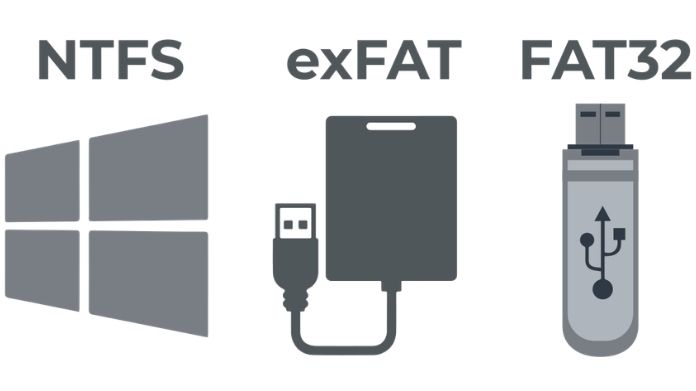
You might be wondering why not just use something newer?
Here’s a quick idea:
- FAT32 → Best for compatibility
- NTFS → Better for large files and advanced features
- exFAT → A central ground for modern devices
FAT32 isn’t the most advanced, but it’s often the most dependable, especially for bootable media.
Advantages of the FAT32 File Allocation Table
- Works on almost every device
- Simple and lightweight
- Easy to manage and repair
Limitations of FAT32
- Maximum file size of 4GB
- Can become fragmented over time
- Lacks advanced features like security permissions
Wrapping Words
Although FAT32 seems simple at first appearance, it performs a lot of work in the background to manage, track, and arrange your data so that everything runs smoothly.
Many things begin to make sense once you grasp how the File Allocation Table works. Solutions appear more obvious, while issues are easier to identify.
When it comes to putting that knowledge into practice, tools like GUI Formatter make the process simple and stress-free.
Finally, comprehending the concept is far less crucial than putting it into practice to make your IT life easier.