If you have ever attempted to use a USB drive on other computers, you may have noticed that not all computers support the same file system.
This is where ExFAT and FAT32 come into play. These file systems decide how files are to be read on your USB drive.
Many USB drives come preformatted with ExFAT, which is compatible with most computers today and allows you to store large files.
But there are some devices, like old gaming consoles, car media players, cameras, and TVs, which support FAT32 to be able to read your USB drive.
This often leaves users asking the same question: “Can you convert ExFAT to FAT32 without losing your files?“
The short answer is yes, since Windows frequently has to format the drive, which deletes data. However, with the proper procedure, you may securely convert ExFAT to FAT32 without losing any files.
We’ll go over several useful ways to convert ExFAT to FAT32 while protecting your information in this post.
Short Brief of ExFAT and FAT32
Before making any changes to your drive, it is helpful to know the difference between these two file systems.
ExFAT
This file system was created to be used with flash drives. This file allocation was created to eliminate the limitations of older file allocation systems like FAT32.
One of the biggest advantages of ExFAT is that it supports very large files and storage capacities.
For example, if you’re transferring 10 GB video files or large game backups, ExFAT handles them easily.
FAT32
FAT32 is much older, but it’s still widely used today because of its incredible compatibility.
Devices that commonly rely on FAT32 include:
- Older gaming consoles
- Smart TVs
- Digital cameras
- Car entertainment systems
- BIOS update drives
Simply said, if you require a USB drive that works practically anywhere, FAT32 is typically the safest option.
Simple Way to Convert exFAT to FAT32 Without Confusion
You can go through the traditional ways, like using the “Backup and Format Method” using File Explorer, or using “Disk Management.”
These methods work on almost any computer, but they are somehow complicated, and Windows limits FAT32 formatting for drives over 32GB, even though it’s possible.
The limit comes from the system, but a special tool like GUI Formatter can fix it quickly.
GUI Formatter makes it easy to format large USB or SD cards to FAT32 in just a few clicks without requiring you to go through a lot of hassles.
It’s a handy solution when Windows doesn’t offer the option, but you still need FAT32 for compatibility.
Steps to Format Using the GUI Formatter:
- Download the GUI Formatter and save it to your computer.
- Insert your USB drive and make sure it appears in Windows.
- Open the guiformat.exe file to launch the tool.
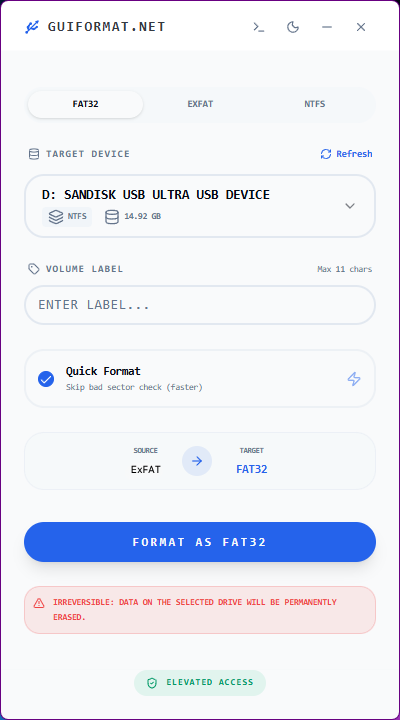
- Now you’ll see your USB drive in the drive dropdown menu.
- Select your USB drive from that dropdown menu.
- Choose the formatting type (Quick format / Full format).
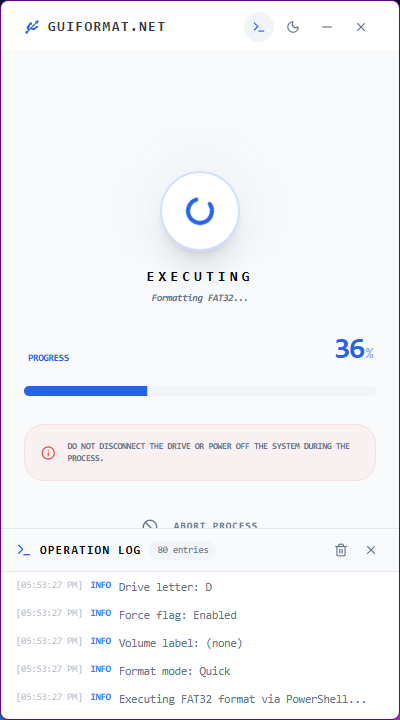
- Click Format to begin formatting the drive.
Things to Check Before Converting
Before changing the file system on your drive, it’s worth double-checking a few important details.
- Back Up Important Files: Even if a tool promises safe conversion, it’s always smart to create a backup first. A quick copy to your computer can save you from unexpected data loss.
- Check File Sizes: Keep in mind that the file size limit for FAT32 is 4GB. You will need to divide or store any big video files or backups that exceed this limit on your disk.
- Confirm Device Requirements: Before converting, make sure the device you are using supports FAT32. ExFAT is supported by a wide range of current devices, therefore conversion is not necessarily required.
Final Thoughts
If you want to utilize older devices or systems that do not support the more recent file systems on your USB device, you might need to convert ExFAT to FAT32.
In Windows, the file system is unchanged but you can safely format your disk and restore your files.
The right method and tools can help you update your USB drive with all the necessary information and convert exFAT to FAT32 without losing any important data.