Everyone has experienced plugging in an old USB drive and expecting it to function as it once did, but nothing occurs.
Even worse, even if your computer recognizes it, you are unable to access any files. It’s annoying, particularly if the disk contains crucial work data, papers, or memories.
What is the good news? An useless old USB drive does not always indicate that it is dead.
In most circumstances, the problem can be resolved with a few easy actions. Whether your drive has stalled, been corrupted, or just stopped working, there’s a strong chance you can restart it.
Let’s walk through what might have gone wrong and, more importantly, how you can fix it.
Why Old USB Drives Stop Working?
USB drives don’t last forever, but they usually don’t fail overnight either. Most problems build up over time.
Sometimes, the file system gets corrupted. This can occur if you remove the drive without properly ejecting it.
Other times, it is simply wear and tear. USB drives, like all other types of storage devices, have a limited lifetime.
Viruses can also cause problems, especially if the disk has been shared between numerous computers.
In some circumstances, faulty sectors (damaged bits of memory) might render particular areas illegible.
There are also simpler issues like the drive being formatted in a way your system no longer supports. The key is figuring out what’s actually causing the problem.
Things to Check Before You Start Fixing
Before jumping into repairs, it’s worth doing a few quick checks. Try plugging the USB drive into a different port.
Sometimes the issue isn’t the drive, it’s the port. If that doesn’t help, test it on another computer. This can quickly tell you whether the problem is with your system or the USB itself.
Take a moment to inspect the drive physically. If it’s bent, cracked, or loose, the problem might be hardware-related.
And if you can still access any files, back them up right away. Even if the drive seems stable for now, it’s better not to take chances.
Methods to Make an Old USB Drive Usable
Method 1: Format the USB Drive
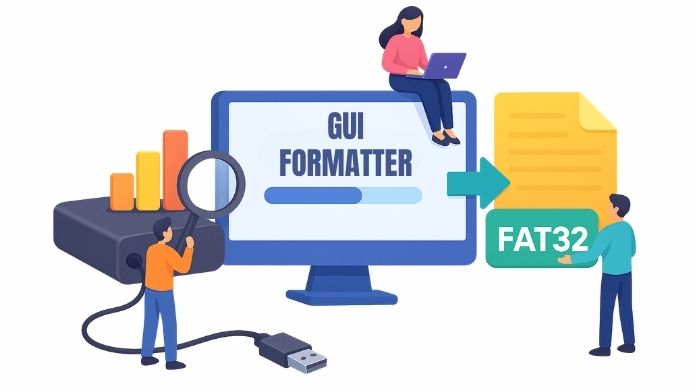
This is undoubtedly one of the simplest and most efficient alternatives for you.
Formatting is an excellent approach to remove any faults from your device and give your old USB drive a fresh start.
Furthermore, formatting is a great way to ensure that your device is compatible with a wide range of devices, especially when utilizing formats like FAT32.
But here’s the thing: the traditional formatting tools in Windows don’t always give you the flexibility you need, so you can use a simple application like GUI Formatter.
If you cannot locate a compatible format on your system,
Here’s how you can do it:
- Open GUI Formatter
- Select your USB drive
- Make sure the format is set to FAT32
- Choose Quick Format for a faster process, or turn it off if you want to check for errors
- Click Start and confirm
Method 2: Repair File System Errors
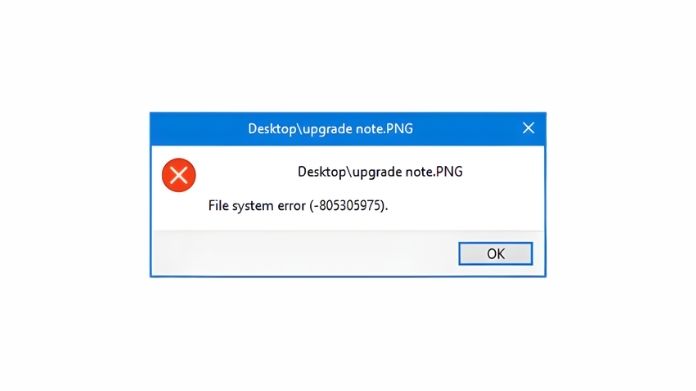
If you don’t want to erase everything just yet, repairing file system errors is a good place to start.
Operating systems come with built-in tools that can scan your USB drive for issues and fix them automatically.
Steps to Repair File System Errors
- Plug your USB drive into the computer
- Open File Explorer and find your USB drive
- Right-click on the drive and select Properties
- Go to the Tools tab
- Click on Check under “Error checking.”
- Select Scan and repair drive
- Wait for the process to complete
This method is especially useful if your drive is showing up but behaving strangely, like files not opening or folders appearing empty.
Method 4: Update or Reinstall USB Drivers
If your computer isn’t recognizing the USB drive at all, the problem might be with the drivers.
Drivers serve as a link between your hardware and your system. If they are obsolete or damaged, your computer may fail to identify connected devices.
Updating or reinstalling USB drivers can fix detection issues, especially if the drive works on another computer but not yours.
Method 5: Remove Bad Sectors
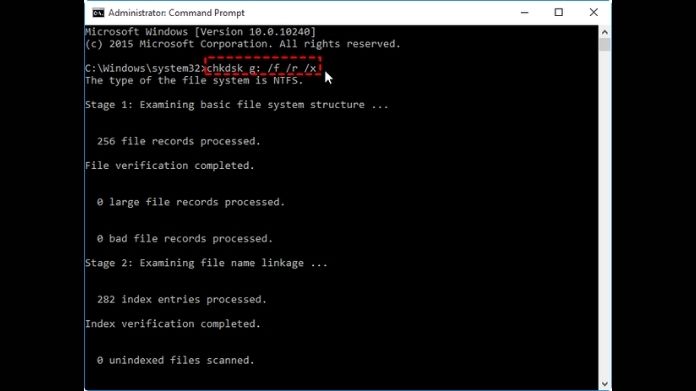
A USB disk may sustain damage over time. These are referred to as “bad sectors,” because they may make it difficult to read or write data correctly.
Tools like CHKDSK can help identify and isolate these areas, allowing the rest of the drive to function normally.
However, it’s important to understand that this isn’t a permanent fix. If your drive has too many bad sectors, it may continue to degrade.
Steps to Remove Bad Sectors (Using CHKDSK)
- Plug your USB drive into your computer
- Open Command Prompt as administrator
- Type the command:
- chkdsk X: /f /r
- (Replace “X” with your USB drive letter)
- Press Enter and wait for the scan to complete
- Let the system fix any errors it finds
Method 6: Scan for Viruses
Your USB drive may have acquired malware if it was used on shared or public computers.
Viruses might conceal files, alter data, or render the disk inaccessible. Running a full antivirus scan can help detect and remove these threats.
It’s a basic step, but one that is sometimes missed.
When the USB Drive Cannot Be Fixed?
As much as we’d like to recover every device, some USB drives reach a point where they can’t be repaired.
If your drive is not identified by any computer, becomes abnormally hot, or regularly disconnects, it may be an indication of hardware failure.
At that point, you should consider replacing it. USB drives are generally inexpensive, and replacing one might save more time and stress than attempting to repair it.
Tips to Keep Your USB Drive Healthy
- A few easy behaviors might help maintain your drive once it starts functioning again.
- Always carefully remove it before disconnecting. Avoid using it on untrustworthy or compromised computers. If the data is crucial, make a backup somewhere else just in case.
- USB drives are convenient, but they shouldn’t be your only storage solution.
Wrapping Up!
An old USB drive acting up doesn’t always mean it’s beyond repair. In many circumstances, a simple correction, such as formatting or fixing mistakes, will restore functionality.
The idea is to test each approach slowly and determine what is causing the problem. Even if one option fails, another may succeed.
With a bit of effort, you can often turn a “dead” USB drive into a usable one again and save yourself from losing important data along the way.