If you’ve tried to format a USB drive in Windows and noticed the Windows Not Showing FAT32 issue, you’re not alone.
Many users run into this problem; it happens a lot, especially if the drive is bigger than a certain size.
Even though the FAT32 file system is still popular and supported, Windows not showing FAT32 it in some instances.
However, this does not mean that the device cannot be formatted with the FAT32 file system.
The common causes of this problem and the simplest solutions will be covered in this article.
Understanding the FAT32 File System
FAT32 is a file system used to organize and manage files on storage devices such as USB drives, SD cards, and external hard drives.
This file system has been in existence for quite some time now, and its use has not dwindled over the years; this is due to its reliability.
The greatest advantage that FAT32 offers is that it is compatible with almost every device or operating system without the need for additional drivers or software.
Whether you are using a PC, Mac, Linux, or even a gaming console, the device is most certainly compatible with the FAT32 file system.
Key Characteristics of FAT32
- High Compatibility: FAT32 is supported by almost all operating systems and many hardware devices. This makes it a good choice when a USB drive needs to be used across different platforms.
- 4GB Maximum File Size: The main limitation of FAT32 is that it cannot store individual files larger than 4GB. For most everyday files like documents, music, or small videos, this is usually not a problem.
- Commonly Used for Portable Storage: Because of its compatibility, FAT32 is often used for USB flash drives, memory cards, and other removable storage devices.
Why is Windows Not Showing FAT32 Option?
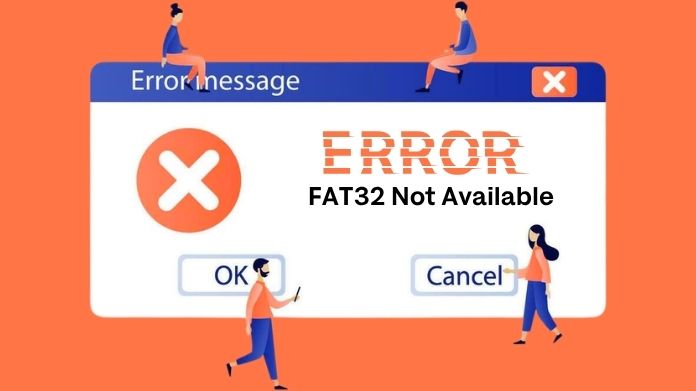
If Windows is not showing the FAT32 option when you try to format a drive, there are several possible reasons behind it.
- Drive Size Larger Than 32GB: The most common reason is the drive’s size. In fact, it has been noticed that Windows’ built-in format tool does not show FAT32 for drives larger than 32GB. Instead, it shows options like NTFS and exFAT. This is related to the format tool, even though FAT32 supports larger volumes.
- Windows Built-in Formatting Limitation: Another reason is the restriction placed by Windows. The operating system’s graphical formatting application imposes constraints on FAT32’s use. As a result, many people believe that FAT32 cannot handle enormous quantities, despite the fact that it can.
- Existing File System or Partition Format: The USB drive may already be using other file systems such as NTFS and exFAT. FAT32 may not be listed as an option in this case, as detected by the Windows operating system.
- Corrupted or Hidden Partition: The partition may already be damaged or may have an unconventional partition structure. This is why, in some cases, FAT32 may not be listed as an option for the user.
How to Fix Windows Not Showing FAT32?
If Windows not showing FAT32 option when formatting a USB drive, there are several methods you can use to resolve the problem.
1. Use a FAT32 Formatting Tool
The easiest way to solve the problem is to use a special formatting tool that allows formatting large disks to FAT32: these programs don’t “see” the constraint imposed by the Windows formatting utility.
An example would be to use GUI Formatter. This program allows you to format drives larger than 32GB into FAT32 using the user-friendly graphical interface.
Steps to format a drive using a FAT32 tool:
- Download and open the GUI Formatter.
- Insert the USB drive into your computer.

- Select the correct drive letter from the list.
- Choose FAT32 as the file system.
- Click Start to begin formatting.
- Wait until the process is complete.

This method is very simple, highly reliable, and well-suited for most users who want a quick solution.
2. Format Using Command Prompt
If you don’t want third-party interference, you can handle this problem with the Command Prompt and Diskpart. Windows comes with a utility that lets users use commands to format drives and partitions.
Steps to format using Diskpart:
- Press Windows + R, type cmd, and open Command Prompt.
- Type diskpart and press Enter.
- Type list disk to view available drives.

- Identify your USB drive and type select disk X (replace X with the correct disk number).
- Type clean to remove existing partitions.
- Type create partition primary.
- Type format fs=fat32 quick.
- Type exit to close Diskpart.
This method is powerful but should be used carefully to avoid selecting the wrong disk.
Important Things to Check Before Formatting
Before formatting any USB drive, there are a few important things you should always keep in mind.
- Formatting deletes all data: Formatting will erase everything stored on the drive. Always back up important files before starting the process.
- Double-check the selected drive: Make sure you have selected the correct USB drive. Formatting the wrong drive could result in permanent data loss.
- Ensure the USB drive is properly connected: If the drive is not properly connected, Windows may not recognize it correctly.
- Avoid interrupting the formatting process: Stopping the formatting process midway can cause errors or corrupt the drive.
Closing
Windows not showing FAT32 when formatting USB sticks larger than 32GB. This mostly happens because the Windows formatting tool limits the FAT32 option for larger disks.
Fortunately, there are simple fixes for the problem. Command Prompt, Disk Management, or a specialized formatting tool can help you format your disk correctly.
By knowing what is causing this problem, it is easy to format your USB drive to FAT32, which will then be able to work with all the devices that you want it to.