You plug your USB into your laptop it works perfectly. Then you try the same drive on your TV, gaming console, or a friend’s computer… and suddenly it’s not recognized.
No files, no error message, just nothing; that means your USB not work on ever device.
If this sounds similar, you aren’t alone. USB compatibility issues are one of those little but unpleasant issues that arise at the worst possible time, such as when you’re about to present something or transfer critical files.
Don’t worry, your USB disk is probably fine. Most of the time, the issue arises because the device and USB not work properly configured together.
An issue is sometimes easier to tackle than you think once you understand why it exists.
What Causes USB Compatibility Issues?
At first glance, it seems that USB flash drives are universal devices; you can plug them into anything, and they will work without a problem.
In practice, however, there are differences among various devices, which is one of the most common reasons a USB not work issue occurs.
As an example, your laptop is flexible. It’s compatible with different operating systems, USB standards, and even storage sizes.
On the contrary, television sets, cars, and video game consoles cannot be very versatile, since they are designed to serve one single purpose.
Think of it like trying to play a Blu-ray disc on an old DVD player. The device isn’t broken; it just doesn’t support that format.
Common Reasons Why Your USB Not Work

1. Unsupported File System
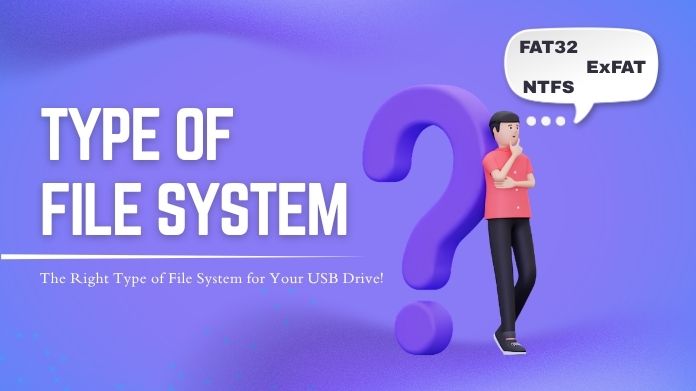
This is the most common culprit behind a USB not working issue. Every USB drive uses a file system, basically a way of organizing data. The three most common ones are FAT32, exFAT, and NTFS.
Here’s where things get tricky:
- Modern computers handle all three without issues
- Many external devices only support FAT32
So if your USB is formatted as NTFS or exFAT (which is common for larger drives), your TV or console might not recognize it at all.
To fix this, you often need to switch the file system to FAT32. But there’s a catch Windows doesn’t let you format large drives to FAT32 easily.
That’s where a simple GUI formatter tool becomes useful, helping you format even bigger drives into a more widely supported format and potentially resolve a USB not working issue.
2. File Size Limitations
Even if your USB is detected, you may encounter another problem: uncopyable data.
FAT32 has a limitation; it doesn’t allow files larger than 4GB. So, transferring a high-quality video or a huge project file will simply not work.
This is an example of a compatibility/functionality trade-off.
This is one of those trade-offs between compatibility and functionality.
3. Device-Specific Restrictions
Some devices are just picky.
For example:
- A gaming console might require a specific folder structure.
- Only specific media file types may be detected by a TV.
- A car system might ignore anything that doesn’t meet strict criteria.
Even if your USB is perfectly fine, the device might still reject it because it doesn’t meet these hidden rules.
4. USB Version Differences
Not all USB ports are created equal. The devices from an earlier era do not always deal with new flash drive features (for example, USB 3.0 or 3.1) correctly.
However, they are usually backward compatible. Sometimes, when a USB not work issue occurs, the hardware itself is the problem rather than the data.
Switching to a different port or using an older USB drive can surprisingly solve the problem.
5. Corrupted or Damaged USB Drive
Your USB may have problems if it has been used on several systems or disconnected without being carefully ejected.
This can lead to:
- Missing files
- Drives not showing up
- Random read/write issues
In such cases, repairing or reformatting the drive can bring it back to life.
How to Fix USB Compatibility Issues?
1. Format the USB to a Compatible File System
If you want your USB to work across the widest range of devices, FAT32 is usually the safest choice.
But here’s the frustrating part Windows limits FAT32 formatting for larger drives.
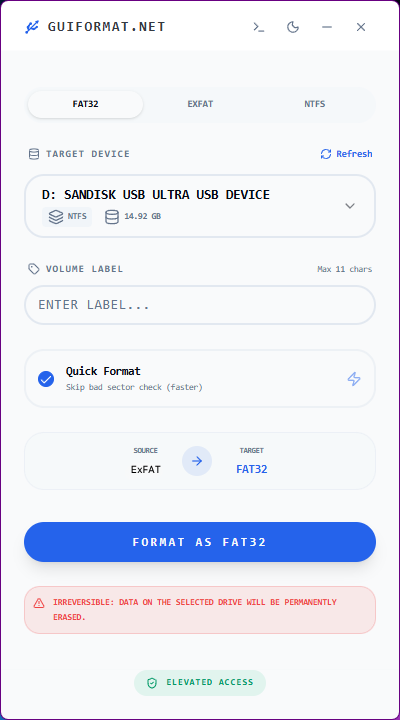
That’s why many people turn to a GUI formatter tool. It simplifies the process and lets you format larger USB drives into FAT32 without complicated steps.
It’s one of those small tools that quietly solves a big problem.
- Download the GUI Formatter and open it
- Insert the USB drive that you want to format
- Now, in the tool, you can see the USB drive visible in the drop-down
- Select the file system in which you want to format your USB drive
- Click on the “Format” button to start the formatting process
- Wait, it will take a few minutes to complete the format process.
After completing the process, you will get your USB in your required file system. Also, due to this, you can also solve the issue of USB not working on every device.
2. Check Device Requirements
Before assuming something is incorrect, take some time to verify what your device actually supports.
By briefly reviewing the online specs or the guide, many assumptions may be avoided.
3. Repair File System Errors
Sometimes, your USB may suddenly get back to functioning normally after being run through a repair tool.
Here are the steps,
- Connect the USB drive to the PC
- Open the File Explorer
- Right click on the USB drive and select Properties
- Open the Tools tab and click the Check
- Select the scan and repair drive
Nothing is easier and more often results in success. You can also refer to Microsoft’s official guide on the Windows error checking tool.
4. Try a Different USB Drive
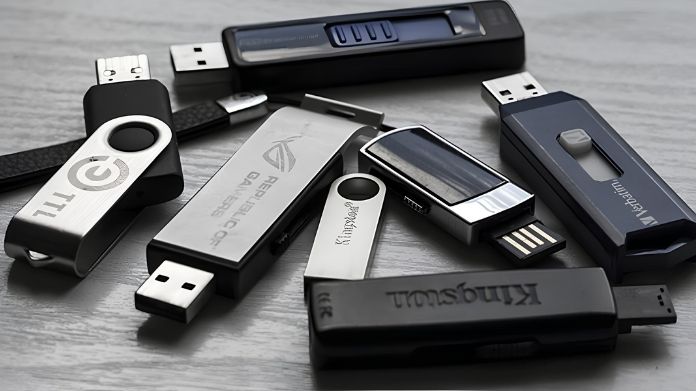
After running a repair utility on your USB, it may unexpectedly resume normal operation. Nothing is easier or more likely to result in success.
FAT32 vs exFAT vs NTFS: Which One Should You Choose?
Choosing the right file system depends on how you plan to use your USB:
- FAT32 → Best for compatibility (works on most devices)
- exFAT → Great for large files and modern systems
- NTFS → Ideal for Windows-only use
If you want a USB that works everywhere, then you must go with FAT32; it is the safest option.
When Do You Actually Need Extra Tools?
You don’t always need additional software. But there are specific situations where it becomes helpful:
- When your USB is larger than 32GB, and you still need FAT32
- When Windows doesn’t show the FAT32 option
- When you’re dealing with strict device compatibility
In these cases, using a GUI formatter makes the process quicker and far less frustrating.
Tips to Avoid USB Compatibility Issues in the Future
A few small habits can save you from a lot of trouble later:
- Format your USB according to where you wish to utilize it.
- Always eject your drive safely
- Keep backups of important files
- Avoid switching formats too frequently without a reason
Our Thoughts
If there is a failure in your USB when trying to use it in each device, the first thing that comes to mind is that there might be something wrong with the drive itself.
But the truth is, the issue is more of compatibility rather than damage to your device.
Once you understand these factors, the problem becomes much easier to manage. A quick format, a small adjustment, or the right tool can make all the difference.
At the end of the day, it’s not about making your USB “perfect,” it’s about making it compatible with where you need it to work.