It’s annoying to run out of storage when gaming. One day you’re downloading a new game, and the next your console or PC displays the dreaded “storage full” notification.
That’s why many gamers choose a flash drive for gaming as a quick and low-cost storage solution.
Today, flash drives are faster, larger, and much more useful for gaming than they used to be.
With this guide, you will find out how to play games from a flash drive, the correct formatting, as well as the best settings to be used in various gaming consoles, PCs, and retro consoles.
Why Gamers Use Flash Drives?
Flash drives have become surprisingly useful for gaming. They are easy to operate, small, and portable.
Casual gamers may quickly fix storage issues without having to shell out cash for pricey SSD upgrades.
Here are a few common reasons gamers use them:
- Expanding storage for smaller games
- Backing up save files
- Storing emulator ROMs and mods
- Switching between devices to play games
- Playing media files on consoles
- Creating portable gaming libraries
They’re especially handy for retro-gaming setups and emulators where high storage speeds aren’t always necessary.
How to Use a Flash Drive on Gaming Consoles?
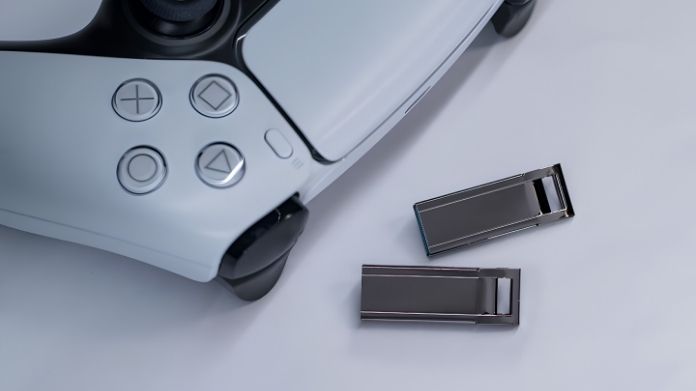
Using a flash drive for gaming console is simple and straightforward. Most modern consoles have a USB that can readily accept a flash drive.
Using a Flash Drive on PlayStation 5
You can use USB drives for:
- media storage
- save backups
- transferring PS4 games
However, PS5 games generally require internal SSD storage for gameplay.
Using a Flash Drive on Xbox Series X
Uses of USB drive include:
- Game storage
- Screenshot storage
- Media file storage
- Transfer of gaming information from one console to another
However, some optimized Xbox Series X|S games may require internal or official expansion storage for full performance.
Using a Flash Drive on Nintendo Switch
You can use USB drives for:
- storing media files
- transferring screenshots and videos
- accessory support in docked mode
- limited external storage functions
However, microSD cards rather than regular USB flash drives are used to hold Nintendo Switch games.
How to Use a Flash Drive for PC Gaming?
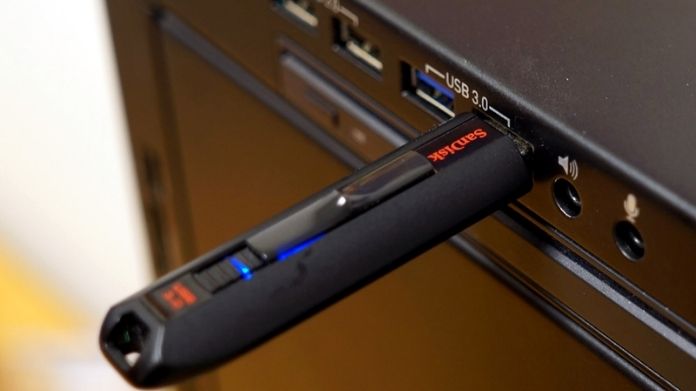
Flash drives are frequently used differently by PC gamers than by console gamers.
Common uses include:
- carrying portable games
- storing mods
- moving Steam libraries
- saving emulator collections
- backing up important saves
Some smaller games can even be played directly from a fast USB 3.0 disk.
I actually traveled with a whole retro emulator setup on a single flash drive. Plugging it into multiple laptops was like having a portable arcades with you.
Choosing the Best Flash Drive for Gaming
Not every USB drive performs the same way. A slow drive can lead to longer loading times and poor gaming performance.
USB 3.0 vs USB 2.0
USB 3.0 is significantly faster than USB 2.0. If your console or PC supports USB 3.0, always choose it.
The difference becomes noticeable when:
- transferring large games
- loading textures
- copying save files
- moving mods or updates
Storage Size Matters
Think about how you plan to use the drive.
For example:
- Retro gaming collections need far less storage
- AAA games require huge amounts of space
- Media and mods add up quickly
Buying slightly more storage than you currently need usually saves money in the long run.
Durability is important, too
Gaming sessions can get long, and USB drives sometimes stay plugged in for hours. A durable drive with good heat management tends to last longer.
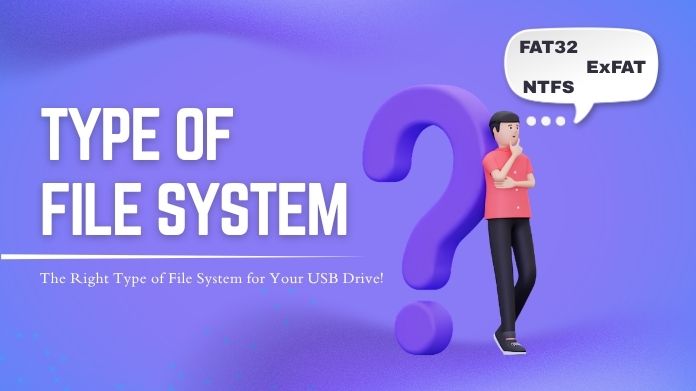
Best File Systems for Flash Drive for Gaming
Choosing the right file system is one of the most important steps.
FAT32
FAT32 has excellent compatibility. Older consoles, retro systems, emulators, and many gaming devices support it without issues.
The downside? FAT32 cannot store files larger than 4GB.
Still, many gamers use it because it works reliably across different platforms.
exFAT
exFAT is more modern and can handle bigger files. It’s great for newer consoles with bigger game files.
NTFS
NTFS works well on Windows PCs but has limited support on some gaming consoles and devices.
When FAT32 Is the Better Choice?
FAT32 is still extremely popular in gaming communities, especially for:
- retro emulators
- modded consoles
- older gaming systems
- USB loaders
How to Format a Flash Drive for Gaming?
Incompatible USB drives frequently require reformatting for appropriate support since FAT32 is still widely used in gaming communities. However, Windows usually can’t format large drives to FAT32 directly.
That’s where tools like GUIFormatter become useful. They allow you to format larger flash drives to FAT32 quickly and without complicated commands.
Formatting steps,
- Plug the flash drive into your PC
- Download the GUI Formatter and open it
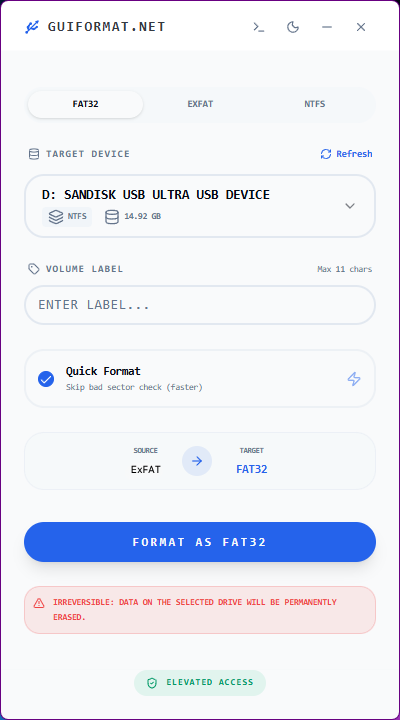
- Select your USB drive from the list
- Choose FAT32 as the file system from the upper panels of file systems.
- Click Format to begin formatting
- Wait for the process to finish, then safely eject the drive
Best Uses of Flash Drive for Gaming
Flash drives are surprisingly versatile for gaming.
They’re excellent for:
- Retro gaming libraries
- Emulator setups
- Portable game collections
- Save file backups
- Mods and patches
- Media playback on consoles
For many casual gamers, they’re one of the easiest ways to expand storage without upgrading internal hardware.
Final Thoughts
A flash drive is still helpful for storage, portability, and backups, but it cannot take the role of a high-speed SSD in modern games.
It is effective for movies. This file system is excellent for retro games, games on PC, mods, and media content.
However, the trick here is to format FAT32 correctly using utilities such as GUI Formatter. For an easy and affordable storage boost, a flash drive remains one of the simplest gaming solutions.