It may be rather annoying to try format 128GB USB to FAT32 and discover the option is absent.
You plug in the drive, open the format window, and instead of FAT32, Windows only shows NTFS or exFAT.
At first, it almost feels like the USB itself is the problem. But here’s the thing: your 128GB USB drive can use FAT32 perfectly fine. The limitation actually comes from Windows.
I ran into this myself while preparing a USB drive for a PS4 update. Everything seemed correct, but the console refused to recognize the drive.
After trying different ports and settings, the real issue turned out to be the file system. The moment I switched the USB to FAT32, it worked instantly.
The problem was never the drive; it was Windows hiding the option.
How to Format 128GB USB to FAT32 Without Limits?
This is where most people get stuck.
Because Windows does not display the FAT32 option for big USB devices, users are forced to resort to complex command-line procedures or dangerous workarounds.
Thankfully, there’s a much easier solution.
Use GUI Formatter to Format 128GB USB to FAT32
GUI Formatter removes the Windows size restriction and allows you to format large USB drives to FAT32 without extra complexity.
Instead of dealing with commands or advanced settings, the process stays simple and straightforward.
Why GUI Formatter Works Better?
Here’s why many users prefer it over the built-in Windows formatter:
- Supports large USB drives like 64GB, 128GB, and higher
- Makes FAT32 available again
- Lightweight and easy to use
- No complicated setup
What I personally like most is that it focuses on one job and does it well.
How to Format 128GB USB to FAT32 Using GUI Formatter?
The process only takes a few minutes.
Step 1: Open GUI Formatter
- Download the GUI Formatter from the official website
- After downloading and installing, simply launch the GUI Formatter tool.
Step 2: Insert and Select Your USB Drive
- Plug in your 128GB USB drive and select the correct drive letter carefully.
- Double-check this step so you don’t accidentally format the wrong drive.
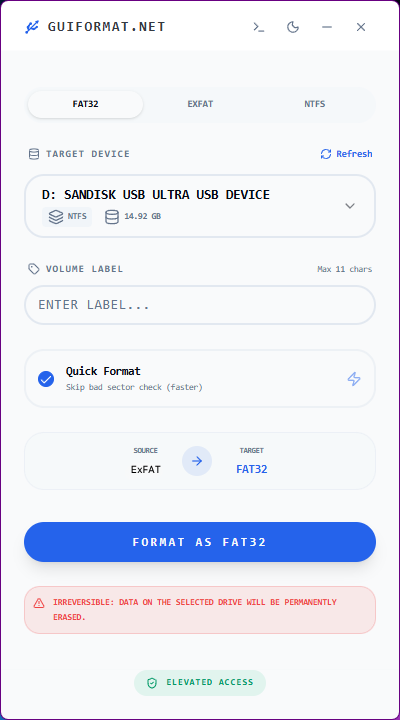
Step 3: Choose FAT32
Select FAT32 as the file system, as there are 3 file system are available (FAT32, NTFS, ExFAT)
This provides the best compatibility for PS4, BIOS updates, TVs, and older systems.
Step 4: Start Formatting
Click the Start button and wait for the process to finish. It usually completes pretty quickly.

Step 5: Check the USB Format
Once done:
- Open “This PC”
- Right-click the USB drive
- Click “Properties”
Why Windows Won’t Format 128GB USB to FAT32?
You should now see FAT32 listed as the file system.
Windows has a built-in formatting restriction. Once a USB drive goes above 32GB, the FAT32 option usually disappears from the formatting menu.
That doesn’t mean FAT32 stops supporting larger drives. In fact, FAT32 can still work on 128GB USB drives without any issue.
Windows simply prefers pushing users toward NTFS or exFAT.
For everyday storage, that may not matter. But for devices like:
- PS4 and older gaming consoles
- BIOS update systems
- Smart TVs
- Car media systems
FAT32 is often the format that works best.
Why FAT32 Is Still Important?
Even though FAT32 is older, it remains one of the most compatible file systems available.
That’s why so many devices still rely on it.
Better Compatibility Across Devices
A FAT32 USB drive is more likely to work smoothly with:
- PlayStation consoles
- BIOS and bootable systems
- TVs and media players
- Older hardware
I’ve personally seen USB drives fail on a TV simply because they were formatted in exFAT instead of FAT32.
FAT32 Works Almost Everywhere
NTFS is great for Windows. exFAT is useful for large files. But FAT32 is still the safest choice when compatibility matters most.
That’s exactly why people continue searching for ways to format larger USB drives to FAT32.
Before You Format Your USB
Before starting, there are two important things to know.
- Formatting Will Erase Your Data. Formatting removes everything stored on the USB drive.
- If you have important files, back them up first before continuing.
Why GUI Formatter Works When Windows Doesn’t?
The biggest difference is simple:
- Windows hides FAT32 for large drives. GUIFormatter doesn’t.
- Your USB drive is fully capable of using FAT32, but the built-in Windows tool limits access to it.
- GUIFormatter bypasses that restriction and restores the option properly.
That’s why it works so well for:
- PS4 USB setup
- BIOS update drives
- Bootable USB devices
- Older hardware compatibility
Best Uses for a FAT32 128GB USB
A FAT32-formatted USB drive is especially useful for:
- PS4 and gaming consoles
- BIOS update drives
- Bootable USB installers
- Smart TVs
- Car media systems
If compatibility matters more than advanced features, FAT32 is usually the better choice.
Common Problems While Formatting
Even with the right tool, small issues can still happen.
USB Not Showing Properly
- Try reconnecting the drive or switching to another USB port.
- USB 2.0 ports often work more reliably for older systems.
FAT32 Option Missing in Windows
- This is the exact limitation GUI Formatter solves.
- Windows removes the option for large drives, while GUI Formatter restores it.
Format Failed Error
Try running GUIFormatter as Administrator and make sure no files are currently open on the USB drive.
Final Thoughts
Format 128GB USB drive to FAT32 shouldn’t feel complicated but Windows often makes it seem that way.
The good news is that the limitation isn’t with your USB drive. It’s simply the built-in Windows formatter hiding the FAT32 option.
That’s why tools like GUI Formatter have become so useful.
If you need a simple way to format a large USB drive to FAT32 without dealing with restrictions, GUI Formatter makes the process quick, clean, and frustration-free.