You put your USB into your smart TV, expecting your movies or music to appear quickly, but nothing occurs. There are no files, no responses, and occasionally no messages.
If your USB not working on smart TV issue is driving you crazy, you’re definitely not alone.
It’s one of those small things that quickly turn frustrating. You know the USB works (it was fine on your computer), so why won’t your TV recognize it?
The truth is, this is a very common issue, and in most cases, it’s easy to fix once you know what’s causing it. Let’s walk through it step by step.
Common Issues You Might Notice
When a USB not working on smart TV or media devices, it often appears in a few well-known ways:
- The USB isn’t detected at all
- You see an “unsupported format” message
- Files don’t appear, even though they’re on the drive
- Only some files play while others don’t
Sometimes, the TV just stays silent, which can be even more confusing.
Check the Basics First
Before trying anything advanced, it’s worth checking a few simple things. You’d be amazed how frequently this resolves the issue.
- Try a different USB port on your TV
- Restart your TV or media device
- Test the USB on your computer
- Make sure the USB is properly inserted
These quick checks can save you time if the problem is something minor.
How to Fix USB Not Working on Smart TV or Media Devices?
Fix 1: Format the USB to a Supported File System
Disk Management and Command Prompt are old techniques that could make the whole process difficult and exclude FAT32 for bigger USB sticks. GUI Formatter solves this problem effortlessly.
USB not working on smart TV or media devices, if it is not in the correct file format. Most of these devices work best with FAT32, but Windows often doesn’t offer this option for drives over 32GB.
That’s where GUI Formatter comes in handy; it allows you to rapidly and easily convert huge USB devices to FAT32.
Steps to Use GUI Formatter
- Download the GUI Formatter
- Open it on your PC
- Select your USB drive
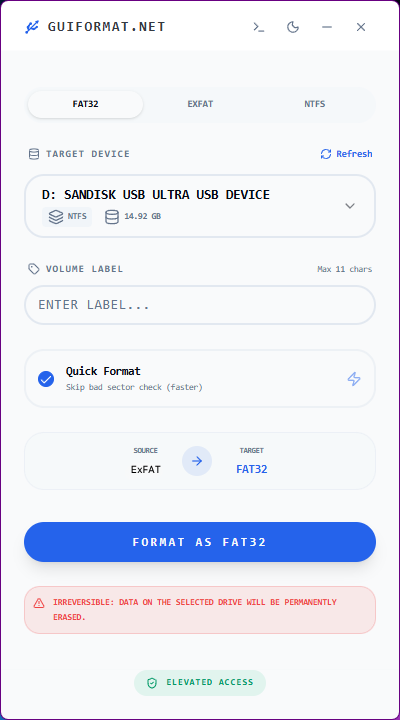
- Keep the file system as FAT32
- (Optional) Enter a name for your drive
- Click Start to begin formatting
Once it’s done, your USB should be ready to work smoothly with your TV or media device. Just remember to back up your data before formatting.
Fix 2: Check File Format Compatibility
While your USB is identified, your files may not play if they are not supported. Smart TVs and media devices only accept a few file formats, including MP4 for video and MP3 for music.
Steps to Fix It
- Connect your USB to your PC.
- Check the file formats (right-click → Properties)
- Compare them to the supported formats on your TV
- If needed, convert files to a supported format (like MP4 or MP3)
- Copy the updated files back to your USB
Once your files are in the right format, they should show up and play without issues.
Fix 3: Repair or Replace a Corrupted USB
If your USB not working on smart TV, such as not opening correctly, producing errors, or disconnecting, it might be contaminated. Before replacing it, consider fixing it using the easy built-in tools.
Steps to Repair the USB
- Connect your USB to your PC.
- Open this computer.
- On your USB disk, do a right-click.
- Choose Properties
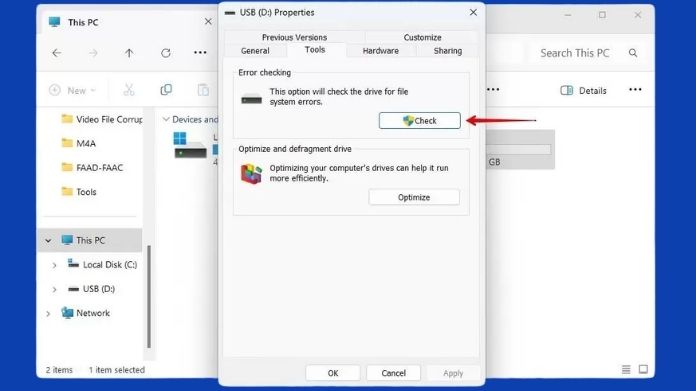
- Select the Tools tab.
- Under Error Checking, choose Check.
- Observe the directions displayed on the screen.
This can fix minor issues and get your USB working again.
Fix 4: Organize Your Files Properly
Complicated folder structures are a challenge for certain smart televisions.
The TV might not be able to find your files if they are hidden in many folders. It helps to keep things simple.
To test whether it enhances detection, try putting your files on the USB or in plain, accessible directories.
Why Your USB is Not Working?
There isn’t just one reason for this; it could be a mix of small things.
One of the most frequent causes of USB not working on smart TV or media device is the file system. Smart TVs like to use FAT32, and if you format the USB stick to NTFS or exFAT, the device may fail to recognize it.
Then there’s file compatibility. Not all TVs support every video or audio format, so even if the USB is detected, some files may not show up.
In some situations, the USB itself may be corrupted, particularly if it was taken out without being properly ejected.
Sometimes it’s simply due to hardware restrictions; not every TV supports USB drives in the same manner.
Tips to Make Your USB Work Smoothly
Once everything is working, a few simple practices can keep it that way:
- For improved compatibility, use FAT32
- Stick to supported file formats
- Safely eject your USB every time
- Keep a backup of important files
These small steps go a long way in preventing future issues.
Final Thoughts
It might be confusing at first when USB not working on smart TV, but it’s typically not a major issue.
More often than not, it comes down to format, compatibility, or a minor mistake that is simple to correct once you know what your device needs; things become much easier to get working.
A few minor adjustments can convert a frustrating situation into a fast solution and restore you to uninterrupted enjoyment of your content.