It’s frustrating, especially because you know the files are there. Whether you’re trying to upgrade your system, stream video, or transfer data, a simple USB issue might quickly become problematic.
You plug in your USB into your gaming console and expect everything to be alright, but something goes wrong. It can say “USB not recognized,” or worse, nothing at all.
The good news? Most of these problems are easier to fix than they seem. Let’s go over what’s wrong and how to fix your USB.
Common USB Errors on Gaming Consoles
When it comes to USB problems, they can manifest in different ways, but there are a few error messages that seem to show up more frequently than others.”USB not recognized.”
- “Unsupported format”
- “Corrupted data”
- Files not appearing even though they’re on the drive
Sometimes, there’s no message at all; the console just ignores the USB completely.
Why USB Drives Show Errors on Consoles?
It’s helpful to know what’s causing the problem before attempting to remedy it. Most of the time, it boils down to a few typical issues.
- One of the biggest reasons is the file system. Most consoles use the FAT32 format, so there might be problems in using an NTFS or exFAT-formatted USB flash drive.
- Another risk is corruption. In case the USB stick was not properly ejected or there was an incomplete data transfer, then the files could be affected.
- Compatibility is another factor to take into account. Your files could seem to have disappeared since not all terminals support all file types or folder patterns.
Easy Fixes for USB Not Recognized on Gaming Consoles
Fix 1: Format the USB Correctly
When your USB not recognized by your console, your gaming console would not be able to recognize it.
Most games consoles use FAT32 formats as their primary choice, particularly for media.
Here’s where things get a little frustrating if your USB is larger than 32GB, Windows usually won’t show FAT32 as an option.
So even if you know what format you need, the default tools don’t always help.
That’s why many people turn to a simple tool like GUI Formatter. It overcomes this constraint and allows you to format bigger USB devices to FAT32 without using difficult procedures.
Steps to format Using GUI Formatter
- Download and open GUI Formatter tool
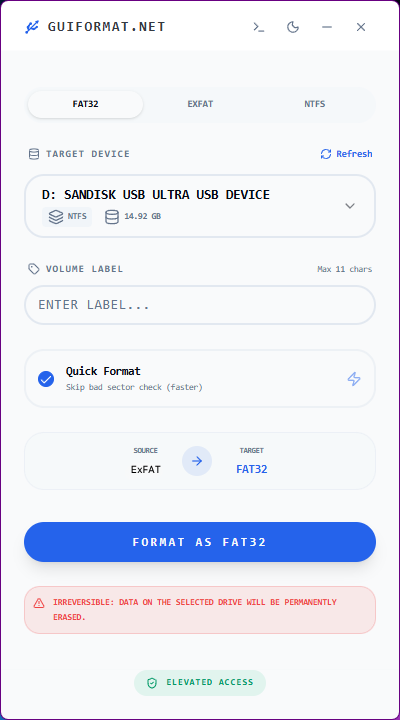
- Select your USB drive from the list
- Keep the file system set to FAT32
- (Optional) Enter a name for your drive
- Click Start to begin formatting
Fix 2: Repair a Corrupted USB Drive
In case you observe that your USB is behaving oddly and has some errors, then it might be experiencing some form of corruption.
In such an instance, the windows repair tools can be used to check out and repair the issue, and most times they fix the problem.
However, if the corruption is severe, recovery might not be possible, and you may need to reformat the drive.
Steps to repair the USB drive
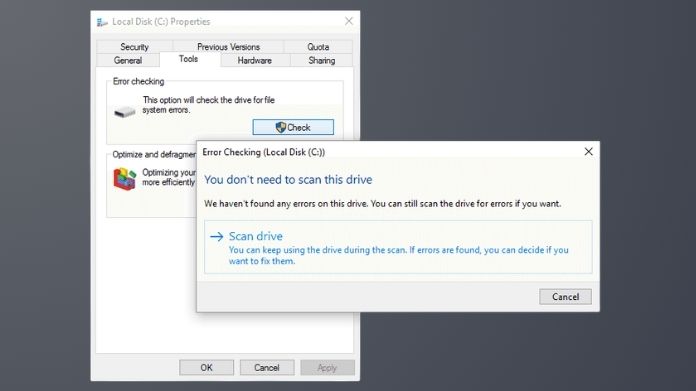
- Plug your USB into your computer
- Open this PC
- Right-click on your USB drive
- Select Properties
- Go to the Tools tab
- Click Check under Error Checking
- Follow the on-screen instructions
Fix 3: Re-copy Your Files Properly
Sometimes the problem isn’t the USB, it’s how the files were transferred.
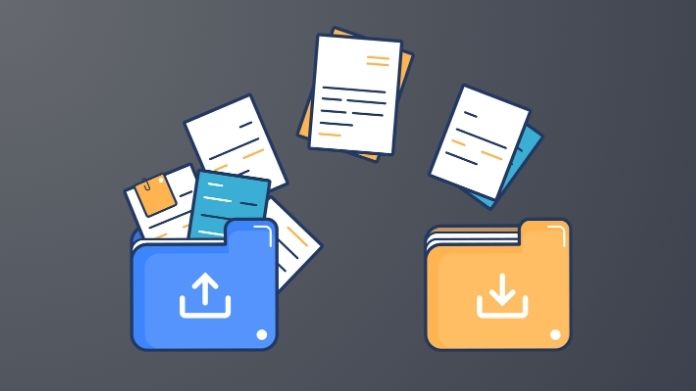
In case files are moved incorrectly or interrupted, it is highly likely that they won’t show up or work properly, and sometimes trigger a USB not recognized error.
Try deleting the files and transferring them again. Make sure:
- The file formats are supported by your console
- The transfer completes without interruption
- Files are placed in the correct folders if required
A clean transfer often fixes what looks like a bigger issue.
When the USB Might Be the Problem?
If your computer or console’s USB isn’t functioning, there may be a hardware problem.
Signs to watch for:
- The USB isn’t detected anywhere
- It disconnects randomly
- You keep seeing errors even after formatting
In these cases, replacing the USB is often the best option.
Tips to Prevent Future USB Errors
Now that your USB has been revived, here are some easy ways of keeping it healthy:
- Stick to compatible formats like FAT32 when needed
- Always eject your USB safely
- Avoid interrupting file transfers
- Keep a backup of important files
These small steps can save you from dealing with the same issue again.
Final Thoughts
While the issues concerning USB drives with game consoles can be bothersome at first, they are not usually as complicated as one may think.
As long as you understand why the problem is happening and approach it correctly, any solution will not be too hard to find.
Once you get the format and setup right, your USB should work just the way you expect.