Trying to format SD card to FAT32 Window 11 sounds simple… until the FAT32 option suddenly disappears.
A lot of users run into this problem when using larger SD cards like 64GB or 128GB. Windows only shows exFAT or NTFS, even though many devices still work best with FAT32.
If you’ve ever tried setting up an SD card for a camera, gaming console, smart TV, or car system, you’ve probably faced this exact issue.
While attempting to preload a 64GB SD card for an older dash cam, I had the same difficulty.
Windows refused to display FAT32, and all online “solutions” required intricate command-line procedures. It is precisely because of this experience that tools such as GUI Formatter are available.
In this guide, you’ll learn how to format SD card to FAT32 on Windows 11 the easy way without technical headaches.
Why Windows 11 Makes FAT32 Formatting Difficult?
Here’s the confusing part.
Your SD card may fully support FAT32, but Windows 11 often refuses to offer it as a formatting option once the storage size goes beyond 32GB.
Instead, Windows pushes users toward:
- exFAT
- NTFS
While those formats are useful, they don’t always work with older or compatibility-sensitive devices.
As a result, users end up:
- Searching random tutorials
- Trying complex CMD commands
- Downloading unreliable tools
- Wasting unnecessary time
What should take two minutes suddenly turns into a frustrating process.
The Simple Way to Format SD Card to FAT32 Windows 11
First of all, SD Card Formatter is the official tool to format SD card, but it also has size limitations, that we can format only 32GB and below to FAT32. Here, our hero introduced the GUI Formatter.
GUI Formatter is a trusted tool; it is a lightweight FAT32 formatting tool designed to bypass these size limitations.
With only a few clicks, you can format huge SD cards to FAT32 without having to deal with complex settings or command-line instructions.
The method remains beginner-friendly, which is its finest feature.
No technical knowledge required.
How to Format SD Card to FAT32 Windows 11 Using GUI Formatter
Step 1: Insert Your SD Card
Connect your SD card using a reliable card reader.
Once inserted, make sure Windows detects it properly before continuing.
Step 2: Download and Open GUI Formatter
Download and install GUI Formatter on your Windows 11 computer.
Its interface is simple and easy, so you can use it easily without dealing with confusing or unnecessary options.
Step 3: Select Your SD Card
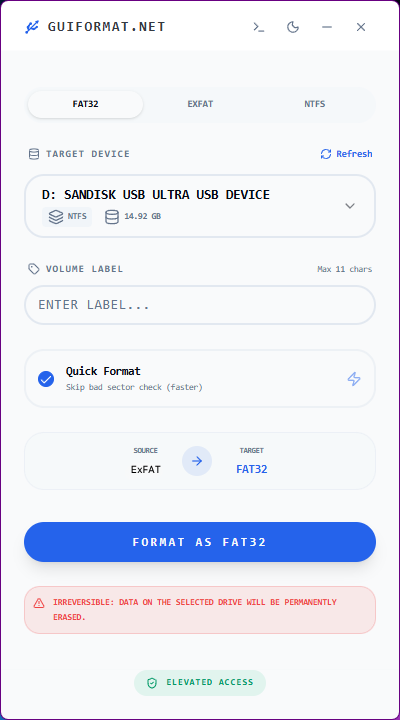
Select the SD Card From the Drive List Be very careful while selecting the SD card because you will be formatting the selected drive.
Step 4: Choose FAT32 Format
Select FAT32 as the file system.
This format works best when compatibility is your priority, especially for gaming consoles, TVs, cameras, and older devices.
Step 5: Start the Formatting Process
Click the format button and let GUI Formatter handle the rest.
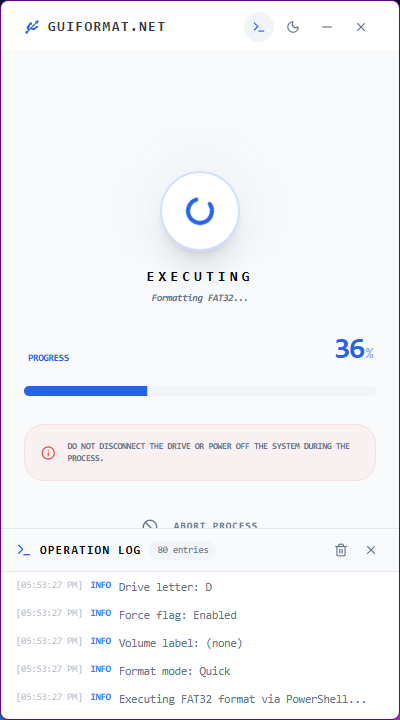
The process usually takes only a few moments, depending on the card size.
Step 6: Safely Remove and Test the SD Card
Once formatting is complete, safely eject the SD card and test it on your target device. Normally, the problems will be resolved after using the FAT32 format.
Why Many Devices Still Need FAT32?
There are various newer file systems, but FAT32 is still widely used because of its compatibility.
Many devices are designed to read FAT32 by default, especially older hardware and embedded systems. This includes:
- Cameras and dash cams
- Gaming consoles
- Smart TVs
- Car audio systems
- Retro gaming devices
- Older PCs and laptops
The biggest advantage of FAT32 is simple: it works almost everywhere.
That’s why people still prefer it for SD cards and USB drives that need to connect across multiple devices.
Why is GUI Formatter Better Than Windows Formatting?
After using multiple formatting tools over the years, the biggest difference with GUI Formatter is simplicity.
It focuses on solving one problem properly instead of overloading users with advanced features they don’t need.
Here’s why many users prefer it:
Removes the 32GB FAT32 Limit
64GB, 128GB, and even bigger SD cards may be formatted to FAT32 without any limitations.
Beginner-Friendly Interface
- No CMD commands.
- No technical setup.
- Just a clean and simple interface.
Better Device Compatibility
Perfect for:
- Cameras
- TVs
- Consoles
- Car systems
- Older hardware
Saves Time
Instead of trying multiple methods, GUI Formatter gives you a straightforward solution that works quickly.
Final Thoughts
Format SD card to FAT32 on Windows 11 shouldn’t feel complicated, but Windows limitations often make it frustrating for everyday users.
That’s exactly why GUI Formatter exists.
Instead of dealing with confusing commands or unreliable workarounds, you get a simple tool that helps you format SD cards to FAT32 quickly and easily.
If compatibility matters for your device, GUI Formatter can save you a lot of time and, honestly, a lot of frustration too.