Have you ever put in a USB drive only to be faced with the statement “You need to format the disk before you can use it”?
It’s frustrating, especially if the drive was working perfectly the last time you used it.
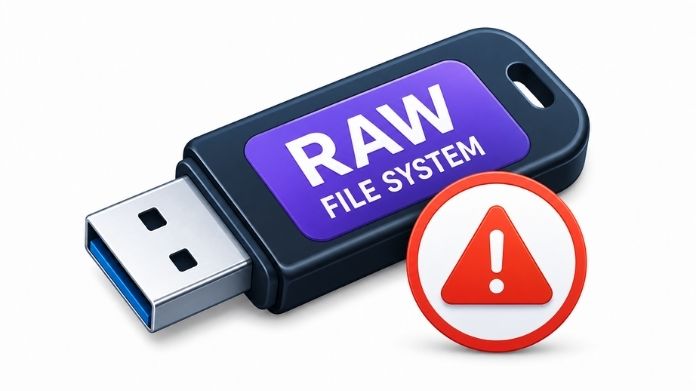
This often occurs when the file system on the pen drive turns RAW. Windows merely views the disk as unreadable rather than identifying it as FAT32, exFAT, or NTFS.
The good news is that in many circumstances, you can recover the disk by format RAW file system with a workable file system like FAT32.
Let’s break down what’s going on when a USB drive shows up as RAW, and the simplest way to fix it by format RAW file system to FAT32 with the GUI Formatter Tool.
Common Causes of a RAW USB Drive
Several issues can cause a pen drive to become RAW:
- Improper Ejection: Pulling out a USB drive without clicking “Safely Remove Hardware” can mess up files or even break the file system.
- File System Corruption: Unexpected shutdowns or software crashes can corrupt important file system structures.
- Malware Attacks: Some viruses target storage devices, potentially damaging partitions or file systems.
- Interrupted Formatting: If a formatting process is stopped midway, the drive may become unreadable.
- Physical Issues: Sometimes, an old flash memory or even hardware problems can be a reason for the problem.
Should You Recover Data Before Formatting?
Before formatting, ask yourself one important question:
Do you need the files stored on the drive?
Before you reach for the format option, take a minute. If you need the files on that drive, try recovering them first. Once you format, getting that data back becomes much harder.
However, if:
- The drive contains no important files,
- You already have backups,
- Recovery isn’t necessary,
then formatting is usually the fastest way to restore the drive.
How to Format RAW File System Pen Drive to FAT32?
Many techniques include the File Explorer, Command Prompt, or DiskPart commands.
Although those techniques may be effective, they are not necessarily suitable for novices. Formatting the incorrect drive or causing many problems can be caused by a single error.
Personally, I’ve seen situations where Windows refused to format RAW file system USB drive properly, yet GUI Formatter completed the job in just a few clicks.
That’s why many users prefer GUI Formatter.
Step 1: Download GUI Formatter
Download and install the latest version of GUI Formatter on your Windows PC.
Step 2: Connect the RAW USB Drive
Insert the pen drive into your computer.
Wait a few moments for Windows to detect the device.
Step 3: Launch GUI Formatter
Open the application.
You’ll see a list of available drives.
Step 4: Select the Correct Drive

Choose the RAW USB drive wisely.
Make sure you double-check the drive letter.
Step 5: Choose FAT32
Select FAT32 as the desired file system.
This ensures maximum compatibility across devices.
Step 6: Start Formatting
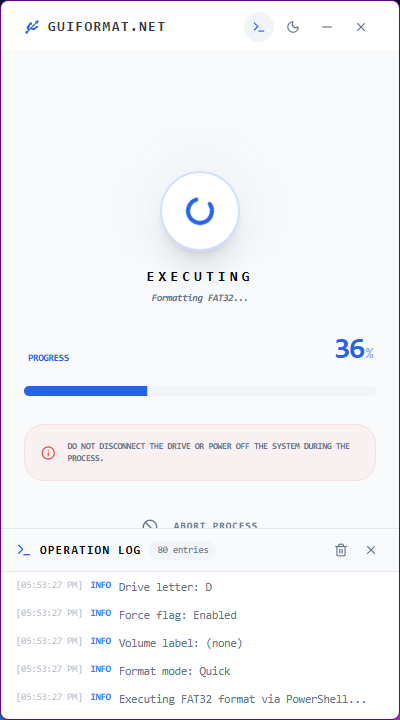
Click the Format button and allow the process to complete.
The formatting usually takes only a few moments.
Step 7: Verify the Results
Once completed:
- Open File Explorer.
- Check the drive properties.
- Confirm that the file system now displays as FAT32.
Your USB drive should now be fully accessible again.
Signs Your Pen Drive Has Become RAW
Not sure whether your drive is RAW? Here are some common symptoms:
- Windows prompts you to format the drive before use.
- Files and folders suddenly disappear.
- The drive cannot be opened.
- Error messages appear when accessing the USB drive.
- The file system shows as RAW in Disk Management.
If you’re experiencing any of these issues, formatting the drive may be the quickest solution.
How to Prevent a USB Drive From Becoming RAW Again?
Nobody wants to repeat this process.
Here are a few simple habits that can help:
- Always eject USB drives safely.
- Avoid unplugging drives during file transfers.
- Keep antivirus software updated.
- Create regular backups of important files.
- Keep your USB drives dry and safe from any damage.
These small precautions can significantly extend the lifespan of your storage devices.
Why FAT32 Is Still a Great Choice?
When your USB suddenly shows as RAW, it feels like it’s useless, but honestly, fixing it is often as simple as formatting.
Switching it to FAT32 brings it back to life and lets you use it with almost any device again.
Excellent Compatibility
One of the biggest advantages of FAT32 is its universal support. One of the biggest advantages of FAT32 is its universal support.
Windows, macOS, Linux, game consoles, smart TVs, cameras, car stereos you name it; they all work with FAT32 drives.
If you frequently move files between different devices, FAT32 is often the safest option.
Simple and Reliable
FAT32 has been around for decades and remains a trusted file system for USB drives.
Final Thoughts
When you see “RAW” as the file system, it can make a once-working USB stick seem useless. But honestly, fixing this problem isn’t as complicated as it looks.
Just format RAW file system drive to FAT32, and you’ll usually get it working again; plus, your device will be compatible with a ton of devices.
While several methods exist, GUI Formatter stands out as one of the simplest and most beginner-friendly solutions available.
If your RAW pen drive is preventing you from accessing files or using the device normally, GUI Formatter provides a quick and reliable way to get it back into working condition with just a few clicks.