When you connect in an SD card or USB drive, have you ever seen the statement “You need to format the disk before you can use it”? You’re not alone if that’s the case.
The file system corrupted is another of the most common problems in storage devices that users encounter.
In this case, even an otherwise good USB drive, SD card, or any other kind of external drive becomes unusable.
File system corruption does not necessarily mean damage. It happens not because of hardware, but the file system problem, and the solution can be formatting.
In this guide, we’ll explore the warning signs of file system corruption, the most common causes, and why formatting is frequently the best way to restore your drive.
Common Signs of a File System Corrupted
File system corruption often shows clear warning signs. If you’re experiencing any of the following issues, corruption may be the cause.
- You need to format the Disk Before You Can Use It: The computer will detect the drive, but won’t recognize the file system on it; it asks you to format the drive.
- Files or Folders Suddenly Disappear: Corruption can damage the file structure, making files or folders appear missing even though they may still be on the drive.
- The Drive Shows as RAW: Instead of FAT32, exFAT, or NTFS, the drive appears as RAW, meaning the operating system can no longer recognize the file system.
- File Transfer Errors: Errors while copying, moving, or saving files often indicate file system problems.
- Drive Is Detected but Won’t Open: The drive appears in File Explorer but displays an error when you try to access it.
- Slow or Unresponsive Storage Device: A file system corrupted can cause a drive to become unusually slow or freeze during use.
How to Format a Corrupted Drive?
If there happens to be corruption in the file system, many users tend to use complicated methods and fix tools.
Although all these can be useful, formatting remains the easiest and most useful way to solve problems.
Windows includes built-in formatting tools, but they have limitations. For instance, there is sometimes trouble when trying to format a big drive with the FAT32 file system.
Here, our hero GUI Formatter tool comes in, helping the user format the USB drive without unnecessary settings and bypassing Windows limitations.
The process only takes a few minutes.
Step 1: Download and open the GUI Formatter tool
Download the GUI Formatter from the official website and then launch it on your computer.
Step 2: Insert and Select Your USB Drive
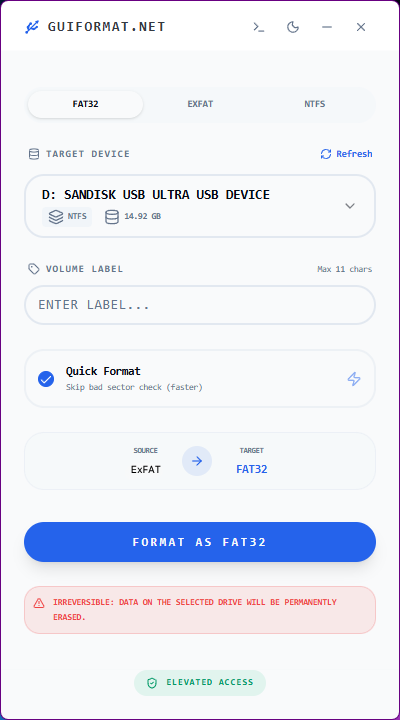
- Plug in your USB drive and select the correct drive letter carefully.
- Double-check this step so you don’t accidentally format the wrong drive.
Step 3: Choose File System
Select the file system (FAT32, ExFAT, NTFS) in which you want to format. This provides the best compatibility.
Step 4: Start Formatting
Click the Start button and wait for the process to finish. It usually completes pretty quickly.
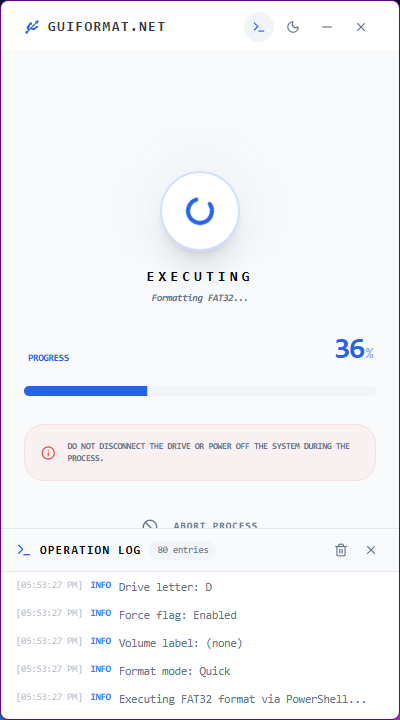
Step 5: Check the USB Format
Once done:
- Open “This PC”
- Right-click the USB drive
- Click “Properties”
Frequently Asked Questions
Q. Does Formatting Fix a File System Corrupted?
Ans. Formatting is a guaranteed fix for almost any logical corruption, but it will delete your data in the process. Even though data recovery is possible afterward, your chances are reduced, and so data recovery should be done before formatting.
Q. Can Viruses Cause Corrupted Files System?
Ans. The computer might be infected by viruses, worms, and other malware that will corrupt your files while spreading. They can alter file structures, delete essential data, or make files completely inaccessible. The use of a good quality antivirus is a must in order to protect you from such dangers.
Final Words
Corruption in the file system may sound frightening because your hard drive could become inaccessible and display error messages all of a sudden. Nevertheless, most of the time, the situation isn’t as scary as it sounds.
Moreover, if using built-in formatting options seems complicated, then the GUI formatter will help you accomplish your task much faster.