Few things are more annoying than putting in an SD card or USB device, selecting “Format,” and then seeing the words “Format Failed” appear.
I’ve faced this problem quite a few times. One such incident was when a USB drive, which was working absolutely fine for months, stopped formatting just before a critical file transfer process.
Windows kept throwing errors, and no matter how many times I tried, the process failed. As it turned out, the solution depended entirely on what was causing the problem.
The good news is that most format failed errors are fixable.
This guide is meant to help you recognize the reason behind this problem and apply a quick solution, whether your storage device is a USB Flash Drive, SD Card, Memory Card, or External Hard Drive.
Common Reasons Behind Format Failed Errors
Before jumping into solutions, it’s important to understand what may be causing the error.
Write Protection Is Enabled
Write protection prevents any changes from being made to a storage device. If enabled, formatting will fail immediately.
SD cards with a physical lock switch are particularly common to this.
File System Corruption
Unexpected shutdowns, unsafe removal, and interrupted transfers can damage the Drive’s file system.
When corruption occurs, Windows may struggle to access or format the device properly.
Bad Sectors on the Drive
Bad sectors can occur in storage devices due to different reasons. They may become an obstacle in formatting the drive.
Malware or Virus Infection
Malicious software can interfere with drive operations and sometimes block formatting attempts.
The Drive Is Being Used by Another Program
The process of formatting might be impossible because some other program is working on the Drive.
Physical Hardware Damage
Unfortunately, not every storage problem can be fixed with software.
If the hardware has been damaged, then no matter what method you use, you will not be able to format your drive.
How to Fix Format Failed Errors?
Fix 1: Remove Write Protection
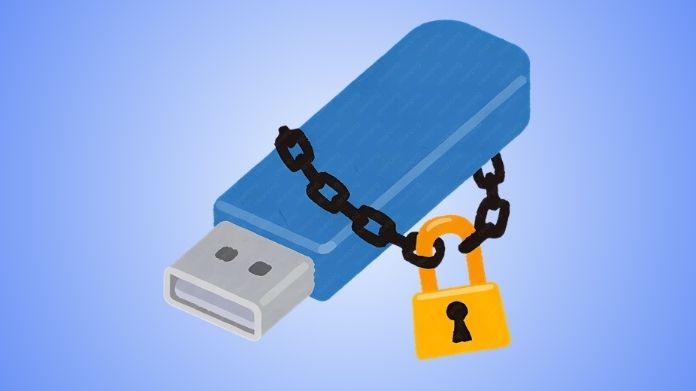
If your device is write-protected, formatting won’t work until the protection is removed.
Check the SD Card Lock Switch
- Many SD cards include a small physical lock switch on the side.
- Make sure it is in the unlocked position before attempting to format.
Disable Write Protection in Windows
You can also remove software-based write protection using DiskPart or Registry settings. Once write protection is removed, try formatting again.
Fix 2: Close Programs Using the Drive
Windows cannot format a drive if another program is actively using it.
Close applications such as:
- File Explorer windows
- Media players
- Backup software
- Antivirus tools
- File synchronization services
After closing these programs, attempt the format again.
Fix 3: Repair File System Errors with CHKDSK
When the Drive is still accessible but behaving strangely, CHKDSK can often repair file system problems.
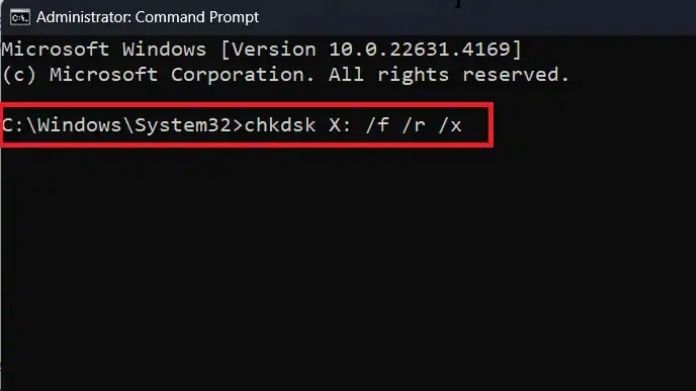
To run CHKDSK:
- Open Command Prompt as Administrator.
- Type:
chkdsk X: /f
Replace X with your drive letter.
- Press Enter and allow the scan to complete.
If corruption is minor, CHKDSK may fix the issue without requiring a format.
Fix 4: Use the GUI Formatter When Windows Cannot Format the Drive
If Windows formatting tools repeatedly fail, this is where GUI Formatter becomes extremely useful.
I’ve witnessed instances where Windows repeatedly refused to format a disk, whereas GUI Formatter finished the job in a matter of minutes.
How to Format a Drive Using GUI Formatter?
Formatting a drive with GUI Formatter is fast and simple. I’ve personally used it when Windows failed to format a USB drive, and it got the job done in just a minute or two.
Here’s how to do it:
- Download the GUI Formatter tool from a trusted website.
- Launch the tool on your computer.
- Choose the USB drive or SD card you want to format. Be careful to pick the correct one.
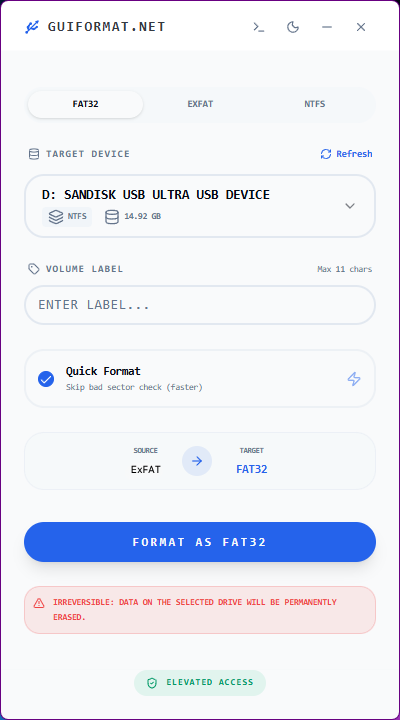
- Select FAT32 or exFAT, depending on your need.
- Press the format button to start the process.
- Wait for it to complete, then safely eject the Drive.
Reconnect the drive when formatting is complete to be sure it is operating normally.
Many users find that using GUI Formatter is far easier than using sophisticated Windows programs or command-line applications.
Fix 6: Scan for Malware

If the Drive became problematic after connecting to multiple computers, malware could be involved.
Scan both your computer and the device for any malware and perform formatting once more.
Frequently Asked Questions
Q. Can the Quick Format be Recovered?
Yes, data can definitely be recovered after quick formatting. Quick formatting deletes only the file system information; therefore, it will not delete any of the actual data, making it easy for data-recovery programs to restore the files.
Q. Can GUI Formatter Fix Every Format Failed Error?
Ans. GUI Formatter is useful in dealing with problems regarding formatting, but it is not able to repair physical damage to the hardware or write protection problems.
Q. Why Does Windows Fail to Format Some USB Drives?
Ans. Common causes include file system corruption, write protection, bad sectors, and damaged partitions.
Q. Is GUI Formatter Safe to Use?
Ans. Yes. If you download it from an authorized source and use it properly, GUI Formatter is quite safe.
Q. What if Formatting Still Fails After Using the GUI Formatter?
Ans. If hardware damage is present, formatting tools, including GUI Formatter, may not solve the issue. The best course of action at that time is often to replace the storage device.
Final Thoughts
A format failed error doesn’t always mean your storage device is beyond repair.
Firstly, try some easy solutions such as writing protection checks, program closing, and repairs for file system errors.
When you fail with the Windows tools, GUI Formatter becomes a quicker and easier solution to restore your Drive.
Before trying any fix, identify what’s causing the problem. Even though formatting is useful in many situations, it will not solve all kinds of problems. Knowing this can save both time and money.