If you’ve ever formatted a USB drive and been given options like FAT32, exFAT, or NTFS, you’re not alone.
Most folks simply click whatever seems familiar and go on. I used to handle it the same way until one of my USB devices stopped working on my TV just before a family vacation.
That minor error taught me an important lesson: the type of file system you choose is really important.
The right type of file system may improve compatibility, manage bigger files, and save you from receiving future “file too large” alerts. Was that the wrong one? It could make your USB drive worthless on some devices.
In this post, we’ll break it down in simple words so you can confidently pick the optimal type of file system for your USB drive.
Which Type of File System is Best for Different Uses?
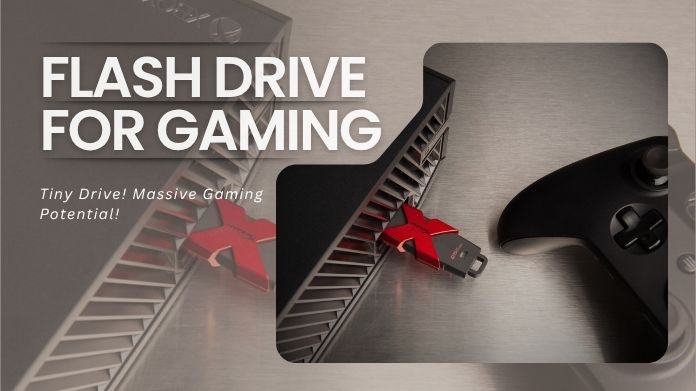
Best File System for Gaming Consoles
Gaming consoles can be surprisingly selective.
- Older consoles often prefer FAT32
- Modern consoles usually support exFAT
- NTFS support varies widely
If you’re unsure, FAT32 is often the safest choice for compatibility.
Best File System for TVs & Media Players
Because FAT32 is widely supported, many smart TVs and media devices keep working well with it.
However, if you watch large 4K videos, exFAT is often the better option since FAT32’s file size limit becomes restrictive.
Best File System for Windows and Mac Users
If you often transfer data between Windows and macOS computers, exFAT is typically the simplest option.
It works seamlessly on both platforms, without the compatibility issues that NTFS might create.
Best File System for Large Files
Working with:
- 4K videos
- Large software packages
- Game installations
- Backups
Then FAT32 probably isn’t ideal.
Both exFAT and NTFS handle large files much better.
The Most Common USB File Systems Explained
FAT32 – Best for Maximum Compatibility
FAT32 is the oldest and most widely supported file system. Almost every operating system and device can read it, including:
- Windows PCs
- Macs
- Smart TVs
- Car stereos
- Gaming consoles
- Cameras
Because of this, FAT32 is frequently the safest choice if you intend to use a USB drive on several different devices.
However, FAT32 has one major limitation: it can’t store individual files larger than 4GB. That becomes a problem if you regularly transfer large videos, game files, or backups.
Also, Windows does not allow you to format drives larger than 32GB to FAT32 through its built-in tools.
That’s where tools like GUI Formatter become useful. They make formatting larger USB drives to FAT32 surprisingly simple without complicated commands.
exFAT – Best for Modern USB Drives
If FAT32 feels outdated, exFAT is its modern replacement.
USB drives and SD cards are examples of flash storage devices for which exFAT was created. It removes the 4GB file size limit and supports much larger storage capacities.
This makes exFAT ideal for:
- Large video files
- External SSDs
- Backups
- Cross-platform use between Windows and macOS
For most people today, exFAT is the best choice because it works well on many devices and supports large files.
NTFS – Best for Windows Users
NTFS is the default file system used by Windows. It’s more advanced than FAT32 and exFAT in several ways.
Benefits include:
- Better security features
- Faster handling of large files
- Improved reliability
- File permissions and encryption support
NTFS can be a bit choosy when it comes to working with devices that aren’t running Windows.
For example:
- Many TVs can’t fully read NTFS drives
- Limited support is available for some gaming systems.
- Macs can usually read NTFS, but struggle to write to it without extra software
If you mostly use your USB drive with Windows, NTFS is the best option for you, but if you use it with other devices, you may face compatibility issues.
How to Format a USB Drive the Right Way?
Mostly people use the traditional Windows built-in formatting method. You simply right-click on the USB drive, choose “Format,” pick type of file system, and start the process. But it works only for the basic tasks.
But after using USB drives for years, I’ve noticed that Windows formatting tools come with a few frustrating limitations.
For example:
- Frequently, Windows won’t format drives bigger than 32GB to FAT32.
- Some advanced formatting settings are hidden we cannot access it easily.
- Compatibility issues can appear when switching between devices.
- The process sometimes feels confusing for beginners.
That’s why many users now prefer more flexible tools like GUIFormatter.
The fact that GUI Formatter is not limited to FAT32 is what sets it apart. It also supports formatting USB drives to:
- FAT32
- NTFS
- exFAT
without the annoying limitations often found in Windows default formatting utility. GUIFormatter makes the process much simpler and more user-friendly.
Steps to Format a USB Drive Using the GUI Formatter Tool
- Download GUI Formatter from the Authorised website
- Insert the USB drive that you want to format
- Open the GUI Formatter, and your USB drive will be visible in the drop-down
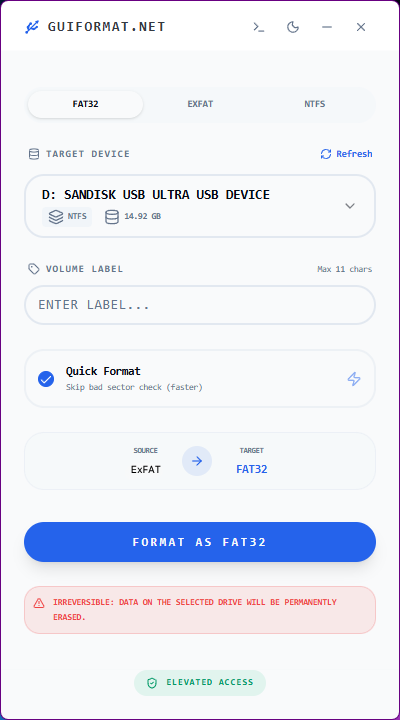
- Now select the file system (FAT32, ExFAT, NTFS) in which you want to format your USB drive.
- After clicking the format button, the formatting process will start, and it takes a few minutes.

- After completing the formatting, your USB drive is ready in your required file system.
What I like about it is that it removes unnecessary complexity. Just choose the drive and format it; no technical expertise or command-line tools are required.
Common Mistakes People Make When Formatting USB Drives
Although formatting is a simple operation, little errors can lead to major issues down the road.
Here are some common ones:
- Choosing FAT32 for Large Video Storage: People love FAT32 because it works everywhere, but the 4GB limit catches many users off guard.
- Ignoring Device Compatibility: A drive formatted for Windows may not work properly on TVs, cameras, or gaming systems.
- Forgetting to Back Up Files: Formatting erases everything. Always double-check before clicking “Start.”
- Relying Only on Windows Default Tools: Windows restricts formatting choices, particularly for larger FAT32 disks.
Final Thoughts
There’s no universal “best” type of file system for every USB drive. The right choice depends on how you actually use it.
If compatibility matters most, FAT32 still does an excellent job. If larger flexibility is needed with large files, then exFAT will be better. If your process remains within windows, then NTFS will suit more.
Choosing the right file system helps avoid everyday frustrations, and a few extra minutes formatting your USB drive properly can save hours of troubleshooting later.